
Ninja Trader Integration with TWS - FAQs
Q: Is Ninja Trader Compatible with the Trader Workstation (TWS) / IB Gateway*?
A: TWS / IB Gateway Application Program Interface (API) accommodates connection to a variety of third-party vendors, including Ninja Trader, who offer complementary order entry, charting, back-testing and analytics software programs designed to expand the functionality of TWS. Please refer to the following Ninja Trader website link for details: http://www.ninjatrader.com/ConnectionGuides/Interactive-Brokers-Connection-Guide
* IB Gateway support is available with Ninja Trader 8+
Q: Can Ninja Trader be tested with the TWS platform demo* which IBKR makes available to prospective clients?
A: Yes, but only on a limited basis as the platform demo is solely intended to demonstrate the functionality of the TWS and its API. As background, the TWS demo provides only delayed market data and does not offer the historical data necessary to populate Ninja Trader charts requiring a combination of streaming and historical data. Once your live IBKR account is approved and funded a paper trading account may be requested, the market data subscriptions to which will accommodate full testing of the Ninja Trader application.
*Demo can be accessed from the login screen of TWS (No Username? Try the Demo or during the opening process of an Account.
Q: Is Ninja Trader compatible with all versions of TWS?
A: No. There is an inherent lag between the time IBKR releases a TWS update and that at which any third-party vendor can reasonably respond with a corresponding software upgrade. In the case of Ninja Trader, its application is compatible solely with the Offline TWS platform (not the automatic update) and to determine the particular version currently supported, please refer to the following Ninja Trader website link: http://www.ninjatrader.com/ConnectionGuides/Interactive-Brokers-Connection-Guide
Q: Can the free delayed market data feed from IBKR be used with Ninja Trader?
A: No. Though delayed market data is generally available through the API, some third-party vendors does not utilize these functions. Account holders seeking to use IBKR as a data source must subscribe to a real-time data feed through the Client Portal.
Q: Is there any distinction between the rate at which Ninja Trader seeks to load chart data and that which the IBKR market data feed supports?
A: As queries which request the same historical data within a short period of time may result in excessive back end server load, IBKR imposes pacing restrictions which, if violated, will generate error codes. In certain circumstances, the pacing of data requests through IBKR may delay the loading of the data through Ninja Trader, particularly when multiple charts and or symbols are loaded simultaneously. For details regarding the limitations IBKR imposes with respect to historical data queries, please refer to the following IB API guide link: https://interactivebrokers.github.io/tws-api/historical_limitations.html
Q: Does IBKR support the market data required to populate Ninja Trader Range Bar charts?
A: Range Bar charts generally depict the movement of price for a particular instrument over a defined time period (e.g. month, day, 5-minute, 3-minute, etc.) or tick increment. At this time many software vendors has not made the necessary updates to offer the tick-data provided by Interactive Brokers. Ninja Trader Bar charts require an alternate data source to eliminate data gaps.
Please refer to the following Ninja Trader website link for a list of supported connectivity providers as well as the historical and real-time data provided by each: http://www.ninjatrader.com/support/helpGuides/nt7/index.html?historical_data.htm
Q: It is possible to use different data source vendor between TWS and Ninja Trader interface?
A: Yes. It should be noted that Ninja Trader does not operate as a vendor of market data and use of this application requires provision of data by a third-party connectivity provider. While IBKR can serve as this provider for real time prices, these prices are not provided on an unfiltered tick-by-tick basis, a prerequisite for fully populating Ninja Trader charts. A common setup therefore, is to use Ninja Trader as a front-end order entry platform, routing orders to the TWS for execution and clearing by IBKR and bridge to a third-party vendor for market data.
Q: Is Ninja Trader compatible with IBKR’s paper trading (simulation) account?
A: Yes Ninja Trader connects to the paper trading account in the same manner as to the live account. To familiarize oneself with the configuration and operation of these applications, IBKR strongly recommends conducting test trades through the paper trading account prior to submitting orders through the live account.
Q: How can orders submitted through Ninja Trader for execution through TWS monitored with TWS?
A: Classic TWS contains a quote monitor page denoted by a tab marked “API” within the main window through which open orders submitted via Ninja Trader or any third party software application may be monitored.
Q: Is Ninja Trader compatible with IBKR’s Financial Advisor and Friends & Family account type?
A: Yes, although not with the full order allocation functionality provided directly through the TWS. While Ninja Trader can be used to submit orders for a client sub-account through the Advisor master account, it does not allow for a single order to be allocated to more than one sub-account: http://www.ninjatrader.com/support/helpGuides/nt7/account_groups.htm. This is in contrast to the TWS user interface which provides for multi-client trade allocations from a single order (through the Account Group or Allocation Profile options).
Q: How does one determine the cause of orders which have been submitted via Ninja Trader and subsequently canceled or rejected?
A: An order which has been canceled or rejected will be accompanied by an error message generated by Ninja Trader and/or TWS depending upon the source of the action. Order cancellations/rejections may be attributable to a variety of factors including IBKR credit policies, exchange restrictions or an invalid user request. In situations where the error message is not self explanatory, the user will need to contact the technical support teams of IBKR and Ninja Trader to diagnose and troubleshoot the problem.
Troubleshooting Trading Platform Login Failures
Click on the link below which best describes your situation:
a. Confirm whether your account has been approved. Accounts which have not been approved or which have been approved after the daily cut-off time are provided access solely to Client Portal and not the trading platform (access will be provided next day if approved after daily cut-off time)
b. Confirm whether your account remains open. Accounts which have been closed, either by customer action or by IBKR due to no balance, no longer have access to the trading platform but continue to have access to Client Portal in order to obtain activity and tax statements. Access to Client Portal is provided using the same User Name and password combination which existed when the account was open and do not require the use of the security device.
c. If you are attempting to log into your paper trading account, make sure that you are not using the user name and password combination from your live account. This combination is possible only if paper account is selected in the drop down menu of the login window.
a. If operating with a temporary passcode, note that alpha characters are case sensitive and are required to be input in upper case format
b. If operating a security card or electronic device, note that there are no spaces between characters
For security purposes, all requests for assistance with a user name and/or password must be initiated via telephone and require prior verification of the account holder’s identity. Requests are to be directed to one of the regional Client Services.
a. Confirm that your Internet connection is active (test by accessing another website). If you are unable to establish an Internet connection you will need to contact your Internet Service Provider for assistance.
b. Confirm whether you are operating under a firewall which is blocking the TWS connection. If so, the firewall would need to be re-configured in order to provide access.*
c. Ports 4000/4001 are being blocked. These ports are often blocked from public connections such as hotels, cafes, etc. and required to be open to accommodate Inbound/Outbound TCP protocol. In addition, if you have a router connected to your computer, these ports must be open on the router.*
*Please click here to check your connectivity status: IBKR Dedicated Connectivity Test Page.
If you are temporarily without possession of your security device, interim access may be provided by contacting your regional Client Services via telephone where, once your identity has been verified, you will be provided with a temporary passcode.
The temporary passcode is a static alpha-numeric code which replaces the randomly generated code provided through your security device and which will provide full access to Client Portal and the trading platforms for 2 days. Should a longer period of permanent device replacement be necessary, and to obtain enhanced protection, it is recommended that you use the temporary passcode to log into Client Portal and print out the online security code card which will operate as a replacement to your security device for up to 3 weeks.
After the expiration of the temporary passcode or online security code card, or if you regain possession of your security device beforehand, you will need to log into Client Portal and select the menu option to re-activate your security device.
In the case of a lost or damaged security device, you will need to contact our Client Services to arrange for a replacement and to provide for interim access. As the time frame for shipping a replacement device may range from 3 to 14 days depending upon your country of residence, interim access is provided via an online security code card. This card may be retrieved for printing or saving as an image to your computer once a temporary passcode has been provided for Client Portal access.
The temporary passcode is intended to provide full access to both Client Portal and the trading platforms for a period of 2 days. After 2 days, the temporary passcode may no longer be used to access the trading platforms but may be used to access Client Portal for an additional period of 10 days. The Client Portal access, however, is limited solely for the purpose of printing or saving the online security code card.
If your window of access to Client Portal using the temporary passcode remains, you may print or save the online security code card through which full access to both Client Portal and the trading platforms is provided for a period of 21 days. If you are unable to log into Client Portal, you will need to contact your regional Client Services for assistance.
The online security code card is intended to provide full access to both Client Portal and the trading platforms for a period of 21 days. This time frame, while limited, is intended to provide sufficient opportunity for the account holder to either regain possession of a temporarily unavailable security device or request and receive a replacement device.
If you are unable to log in using the online security code card, you will need to contact your regional Client Services for assistance and to provide information as to the status of your permanent security device.
Depending upon your location, the physical security device should be delivered to the address of record on your account within 2 days in the case of US residents and within 2 weeks for all other accounts. It’s important to note that the permanent devices are set to automatically activate after a set time frame if not yet manually activated by the account holder. If this is the case and you encounter difficulties logging into your account, please contact our Technical Assistance Center from one of the numbers listed on ibkr.com/support.
If your window of access to Client Portal using the temporary passcode remains, you may print or save the online security code card through which full access to both Client Portal and the trading platforms is provided for a period of 21 days.
If you are unable to log into Client Portal, you will need to contact your regional Client Services for assistance.
You have received your new two-factor security device. Detailed instructions on its activation are in the envelope in which the device came. Alternatively, the card will auto-activate in 2-3 weeks, depending on your geographical location.
Troubleshooting Client Portal Login Failures
Click on the link below which best describes your situation:
- Receiving “Invalid user name password combination” message
- Receiving “Login Failed” message upon entering security device values
- I’ve forgotten my user name and/or password
- I’m temporarily without possession of my security device
- My security device has been lost or damaged
- I’ve been issued a temporary passcode which has expired
- I’ve been issued an online security card which has expired
- I’m awaiting delivery of my physical security device and can now no longer log into my account
- I am able to log into Client Portal with my temporary passcode but not the trading platform
- I am in possession of my security device and wish to activate it
- Receiving “BAD CHARACTER” message after entering my user name
IMPORTANT NOTE: If you are unable to resolve your account access issue from the information above, please contact your local Client Services Center. Also note that for security purposes, all requests for login assistance must be initiated via telephone as it requires prior verification of the account holder's identity. A listing of Client Services Centers, contact numbers and hours of operations may be found via the following website link: ibkr.com/support
1. Receiving “Invalid user name password combination” message.
Make sure that the Caps Lock key is not on as user name is case sensitive and is required to be input in lower case format.
IMPORTANT SECURITY NOTICE: If an account experiences 10 consecutive failed Client Portal login attempts within any 24-hour period, it will be locked out from login regardless of subsequent attempts using the correct user name and password combination. This lock out, intended as a security measure to prevent hackers from random attempts to guess the password, will remain in force until 24 hours have passed since the last unsuccessful log in attempt.
If you believe that your account has or is about to be been locked due to consecutive failed login attempts, you will need to contact to contact your regional Client Services Center via telephone for assistance. Note that assistance for log in matters is only provided via telephone and after the identity of the account holder has been verified.
2. Receiving “Login failed” message upon entering security device values
a. If operating with a temporary passcode, note that alpha characters are case sensitive and are required to be input in upper case format
b. If operating a security card or electronic device, note that there are no spaces between characters
3. I’ve forgotten my user name and/or password
For security purposes, all requests for assistance with a user name and/or password must be initiated via telephone and require prior verification of the account holder’s identity. Requests are to be directed to one of the regional Client Services Center.
4. I’m temporarily without possession of my security device
If you are temporarily without possession of your security device, interim access may be provided by contacting your regional Client Services Center via telephone where, once your identity has been verified, you will be provided with a temporary passcode.
The temporary passcode is a static alpha-numeric code which replaces the randomly generated code provided through your security device and which will provide full access to Client Portal and the trading platforms for 2 days. Should a lengthier period of interim access be necessary, and to obtain enhanced protection, it is recommended that you use the temporary passcode to log into Client Portal and print out the on-line security card which will operate as a replacement to your security device for up to 3 weeks.
After the expiration of the temporary passcode or on-line security card, or if you regain possession of your security device beforehand, you will need to log into Client Portal and select the menu option to re-activate your security device.
5. My security device has been lost or damaged
In the case of a lost or damaged security device, you will need to contact our Client Services Center to arrange for a replacement and to provide for interim access. As the time frame for shipping a replacement device may range form 3 to 14 days depending upon your country of residence, interim access is provided via an on-line security card. The on-line security card may be retrieved for printing or saving as an image to your desktop once a temporary passcode has been provided for Client Portal access.
6. I’ve been issued a temporary passcode which has expired
The temporary passcode is intended to provide full access to both Client Portal and the trading platforms for a period of 2 days. After 2 days, the temporary passcode may no longer be used to access the trading platforms but may be used to access Client Portal for an additional period of 10 days. The Client Portal access, however, is limited solely for the purpose of printing or saving the on-line security card.
If your window of access to Client Portal using the temporary passcode remains, you may print or save the on-line security card through which full access to both Client Portal and the trading platforms is provided for a period of 21 days. If you are unable to log into Client Portal, you will need to contact your regional Client Services Center for assistance.
7. I’ve been issued an online security card which has expired
The on-line security card is intended to provide full access to both Client Portal and the trading platforms for a period of 21 days. This time frame, while limited, is intended to provide sufficient opportunity for the account holder to either regain possession of a temporarily unavailable security device or request and receive a replacement device.
If you are unable to log in using the on-line security card, you will need to contact your regional Client Services Center for assistance and to provide information as to the status of your permanent security device.
8. I’m awaiting delivery of my physical security device and can now no longer log into my account
Depending upon your location, the physical security device should be delivered to the address of record on your account within 2 days in the case of US residents and within 2 weeks for all other accounts. It’s important to note that the permanent devices are set to automatically activate after a set time frame if not yet manually activated by the account holder. If this is the case and you encounter difficulties logging into your account, please contact our Technical Assistance Department at 1-877-442-2757.
9. I am able to log into Client Portal with my temporary passcode but not the trading platform.
If your window of access to Client Portal using the temporary passcode remains, you may print or save the on-line security card through which full access to both Client Portal and the trading platforms is provided for a period of 21 days.
If you are unable to log into Client Portal, you will need to contact your regional Client Services Center for assistance.
10. I am in possession of my security device and wish to activate it.
To activate either a replacement device or one which was temporarily unavailable and which required issuance of a temporary passcode, you will need to log into Client Portal and select the reactivate security device menu option. Once reactivated, neither the temporary passcode nor on-line security card will remain operable.
11. Receiving “BAD CHARACTER” message after entering my user name.
Re-enter your user name and make sure that you do not include any spaces or characters which are not either alpha or numeric (e.g. !@#$%^&*(.,”:...etc.).
Technical FAQs - TWS
Where can I see the TWS system requirements?
Minimum and recommended systems requirements for supported operating systems are listed here. To ensure that you have an adequate Internet connection and enough system resources to run TWS, we recommend that you first open a Trial Account and test the platform.
What are the connectivity requirements to run TWS?
The list of servers that need to be reachable from your machine for operating the TWS are available in the section "DESKTOP TWS" of KB2816.
Can I perform a connectivity test before running the TWS?
It is possible to verify if your computer can reach the needed servers following the instructions on KB2807.
Do I need to install Java before installing or running the TWS?
You do not need to download or install Java manually. The Java Runtime Environment used by TWS is deployed automatically to your machine during the TWS installation.
You do not need to download or install Java manually. The Java Runtime Environment used by TWS is deployed automatically to your machine during the TWS installation.
How do I install the TWS?
The installer packages and related instructions can be found on the Installation Instructions page.
The installer packages and related instructions can be found on the Installation Instructions page.
In which cases I should use the OFFLINE version of the TWS?
If you have a slower Internet connection or a restrictive firewall / security system, you may use the OFFLINE version of TWS. This version already packages all the needed core application files in the installer and does not need to download any additional component during the installation. Moreover, this version will not perform automatic platform updates during the start-up phase. Please notice that a working Internet connection and network access to our servers is still required in order to run the OFFLINE TWS, as described in the section "DESKTOP TWS" of KB2816.
If you have a slower Internet connection or a restrictive firewall / security system, you may use the OFFLINE version of TWS. This version already packages all the needed core application files in the installer and does not need to download any additional component during the installation. Moreover, this version will not perform automatic platform updates during the start-up phase. Please notice that a working Internet connection and network access to our servers is still required in order to run the OFFLINE TWS, as described in the section "DESKTOP TWS" of KB2816.
What is a BETA release, and how can I use it?
The beta release is a pre-production version of an upcoming release that allows you to actively trade while you test new features. You must deliberately elect to use the beta when you log in and should be aware that you do so at your own risk. Since the beta is under construction until production release, we welcome your input on its performance. The beta will be promoted to production after it has been tested both in-house and externally over a specified time period.
The beta release is a pre-production version of an upcoming release that allows you to actively trade while you test new features. You must deliberately elect to use the beta when you log in and should be aware that you do so at your own risk. Since the beta is under construction until production release, we welcome your input on its performance. The beta will be promoted to production after it has been tested both in-house and externally over a specified time period.
How will I know when a new TWS version has been released?
The TWS update wizard will automatically check for TWS updates each time you log in to the platform.
The TWS update wizard will automatically check for TWS updates each time you log in to the platform.
Note: The OFFLINE version of TWS will not perform the automatic update. Should you want to update the OFFLINE TWS platform, you need to download and run again the TWS OFFLINE installer.
How do I know what changes are in a new TWS release?
The login page includes links to both the beta and production release notes. These notes briefly describe new features and problems that have been fixed.
The login page includes links to both the beta and production release notes. These notes briefly describe new features and problems that have been fixed.
Where can I find more information and guidance about the TWS?
Instant help resources include the TWS Webinars, TWS Release Notes, TWS User's Guide, and the Online Tutorials. If you still cannot find an answer to your question, you can contact our Client Services.
Instant help resources include the TWS Webinars, TWS Release Notes, TWS User's Guide, and the Online Tutorials. If you still cannot find an answer to your question, you can contact our Client Services.
How do I reinstall the TWS?
First, remove the TWS software from your machine using your operating system uninstall facility (usually present within the System Settings or within the Control Panel). You can then download and install the TWS again following the instructions on the TWS Software page.
First, remove the TWS software from your machine using your operating system uninstall facility (usually present within the System Settings or within the Control Panel). You can then download and install the TWS again following the instructions on the TWS Software page.
Why are my credentials rejected during login?
You will receive this message for one of the following reasons:
You will receive this message for one of the following reasons:
- you are not entering the proper username (check to be sure the Caps Lock key is not on)
- your account has not been set up yet
- you have entered your password incorrectly more than 10 times
Can I have multiple TWS instances running simultaneously with the same username?
A username can only have one session running at a given time. If your username starts an additional trading session, the system will ask you to disconnect the previous one. In order to run multiple trading sessions, you would need to create additional usernames as described in KB1004.
Can I copy the TWS layout of a given user to another one?
Yes. The procedure is described in KB2320.
On my Mac machine I cannot launch two instances of the TWS. Is there anything I can do?
This is a limitation of the MacOS system but two workarounds are available and detailed in KB2637.
When I install the TWS, the installer tells me that it cannot write a file. What should I do?
This is usually due to wrong / missing file system permissions of your user not having the rights to install software. You may try to SHIFT + right click on the TWS installer and select Run as Administrator. If this does not help, we suggest you contact your IT support or your local PC support and have them install the TWS for you.
When I install the TWS, I receive the error "The signature of the file is corrupt or invalid"
This is usually due to the Microsoft signature validation system and can be solved following the instructions on KB2635.
When I try to install the TWS on my Mac machine, I receive the error "TWS installer is damaged and can't be opened. You should eject the disk image." How can I fix this?
This is usually due to the installer package not being digitally signed by Apple. In order to bypass this check, go to your Mac OS System Preferences by clicking on the Apple icon on the top left corner of Screen and on System Preferences. Click then on "Security and Privacy". Make sure you are in the tab: General and set radio button for "Allow apps downloaded from" to "Anywhere". Launch again the TWS installation. It should now complete fine. Once you have installed the TWS, please go back to the Security and Privacy system preferences and set back the radio button on "Mac App Store and identified developers" since letting it to "Anywhere" represents a security risk.
When I start the TWS I receive the error message "Download Settings from server failed". What can I do?
This is most probably due to the setup of your network. The troubleshooting procedure is described KB3146.
When the TWS starts up I receive the error "Update failed, Retry? Cancel?" How can I fix this?
This may happen if your firewall / security system limits or blocks access to the IBKR update servers. Please consider the TWS connectivity requirements described in the section "DESKTOP TWS" of KB2816.
When I start the TWS I receive the error message "Ddedll.dll file missing or out of date". How can I overcome this?
This error is shown when you try to enable the DDE API access on a 64-bit TWS instance. The steps for the resolutions are indicated in KB2155.
When I start the TWS I receive the error message "Could not create the Java Virtual Machine". What can I do?
This error may be displayed upon TWS startup if you set the memory allocation for the TWS to a value higher than the available RAM of your system or if you set it higher than 2048 Mb on a 32-bit Operating System. To overcome the error, you would need to decrease the memory allocation to a lower value, as explained in this KB2170 procedure.
Can I use the TWS on a network where the IPv6 protocol has priority over the IPv4?
Yes, you just need to open the C:\Jts\tws.vmoptions file and, below the line ###Keep on update, add the following line:
-Djava.net.preferIPv4Stack=true
Once done, save and close the file and start again the TWS.
My TWS platform freezes or crashes often. What can I do to improve the situation?
Normally the TWS needs to allocate and use around 1GB of free memory (RAM) on your machine. If your TWS layout is complex or includes many tools, charts, windows, the standard memory allocation may not be sufficient. This may cause the TWS to freeze or crash. The situation can be improved by assigning more system memory to the TWS, as explained in KB2170.
When I launch the TWS installer on my Mac machine, I receive a warning message. What should I do?
Please check https://support.apple.com/en-us/HT202491 for possible scenarios and related instructions.
I want to use the TWS from a corporate machine but, upon login, I receive reconnection attempts messages and the platform seems unable to connect to the IBKR servers. How can I solve this?
Corporate environment have usually restrictive firewall rules that may limit or block access to external resources. In order to run the TWS in such environments, you would need to contact your IT / Networking department and have them consider the TWS connectivity requirements described in the section "DESKTOP TWS" of KB2816.
I use the TWS on multiple computer and I would like to have the same platform layout on all of them. Is it possible?
The TWS settings of a given user can be synchronized across multiple computer. The steps to enable this function are described in KB2282.
Who do I contact in case I experience technical issues with TWS?
IBKR has two distinct departments that handle specific types of TWS questions. The Client Services deals with everything involving trading, accounts, funding and executions while the Technical Assistance Center (TAC) can help you with connectivity and platform issues.
IBKR has two distinct departments that handle specific types of TWS questions. The Client Services deals with everything involving trading, accounts, funding and executions while the Technical Assistance Center (TAC) can help you with connectivity and platform issues.
Should you require immediate help, please call directly our Client Services. We recommend you to:
- call while you are experiencing the problem
- have your computer turned on and ready for the troubleshooting
- have your account information at hand
If your case does not require immediate attention, we advise you to open a Chat with us, ask iBot or submit your inquiry via Message Center ticket. Should you not have access to your Client Portal, you can use the Contact IBKR facility.
In any case, please be ready to provide:
- your username or account number
- a detailed explanation of the problem
- the time-frame during which the problem has occurred or occurs.
- any pattern you have noticed (e.g. the issue surfaced after the last update, the issue surfaces only when market is closed...)
- your operating system and browser (when applicable)
How can I close my open positions in the event my Internet connection is disrupted?
IB maintains a trade order desk within each of its US, European and Asian Customer Service Centers, effectively providing 24 hour support for phone orders. Traders should note that the order desk facilitates closing market orders only and such orders are assessed a Telephone Order fee of USD 30, or equivalent, in addition to all regular commissions. A listing of phone numbers for each of the Service Centers which we recommend you print and maintain in the event you experience an Internet outage may be found here.
How, under the Windows operating system, do I create a screen shot to send to IBKR?
Overview:
For some support related issues, obtaining a screenshot may provide valuable information that will assist us with resolving the issue being experienced. The following page describes two different methods of creating a screenshot.
Manual Screenshot
For traders not using the TWS, the following describes the process of creating a screenshot and attaching it to a web ticket to submit to Client Service.
To provide an image of your full computer screen select and hold down the ‘Ctrl’ key and then the ’Print Screen‘ key (located in the upper right corner of the keyboard).
For an image of a single window within your screen select and hold down the ‘Alt’ key and then the ‘Print Screen’ key
Next, open a text or image editing program such as Microsoft Word to ‘paste’ and save the shot you’ve just created. Once the program has opened select and hold down the 'Ctrl' key and then hit the “V” key. Verify that this is the image you wish to send and then save the document to your computer. Log in to Advisor Portal and select the Message Center from where you can create a new web ticket and attach your document.
TWS Screenshot / Log File
Traders using the TWS software can use keyboard combinations to capture snapshots of their screen and upload them to assist with support issues.
To create a snapshot of the TWS screen and upload the log file please use the keyboard combination associated with the type of machine being used;
- All PC's except HP's: Ctrl+Alt+H
- Hewlet Packards (HP): Ctrl+Alt+Q
- Mac: Ctrl+Option+H
A window will appear allowing the trader to enter text and check the screenshot box to include an image of the computer screen.
.jpg)
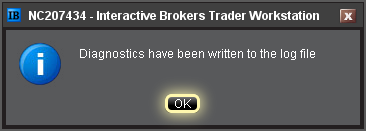
After pressing submit, the following window will appear to acknowledge that the files have been uploaded.
Notes:
- Client Service does not monitor these uploads during the day so be sure to communicate with the Client Service desk prior to uploading files relating to a current issue.
- Traders behind a firewall or proxy may be unable to upload log files and screenshots using the TWS method.
