
Trading Platform Login Report - TWS / mobile
Introducing brokers may request login reports to obtain information regarding their client’s login activity to the various trading platforms and Client Portal. Although the content of this report may be customized to fit particular needs, the username, application type (TWS, Mobile Trader), and time of login in EST are the default contents. Delivery of this report is on a monthly basis and made available through the Client Portal. Based on the chosen contents of the report, however, FTP delivery may also be available.
Please note that this information is provided on a best efforts basis and may contain errors or omissions. The report should be used for informational purposes only and is subject to change without prior or additional notice. IBKR does not warrant that the information provided is accurate, timely or complete and urges clients to contact IBKR immediately should there be any concerns regarding account security or protection.
IBKR Mobile Authentication (IB Key) Use Without Notifications
In case your smartphone is unable to receive IBKR Mobile notifications, you can still complete the login process using the IBKR Mobile Authentication (IB Key) Challenge/Response method, described on the following pages (according to your device operating system):
The same information applies to you if your phone has no Internet connectivity (you are in roaming, out of coverage, without an active mobile data plan, etc.)
If your smartphone is unable to receive IBKR Mobile notifications despite having Internet connectivity, we recommend you to perform the steps outlined in the IBKR Knowledge Base.
How to overcome the "Downloading settings from server failed" error
Background:
Store settings on server allows clients the ability to store their Trader Workstation (TWS) settings/configuration on the cloud and retrieve them at anytime from another computer. This feature allows you to use the layout of a specific user on two or more machines.
In some specific circumstances, the operation which stores/downloads the settings to/from the cloud may fail and the following error message may appear shortly after the TWS has loaded on the screen:
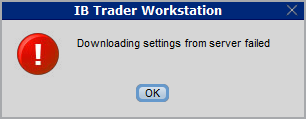
How to overcome this error message?
The underlying causes of this message are usually the following:
- ACCESS TO THE LOCAL MACHINE IS BLOCKED: A security setup, such as a firewall or antivirus, prevents the access of this computer to the cloud storage. This prevents TWS from accessing the remote server, thus disallowing the settings file upload or download. Recommended workaround: set up an exception on the firewall or antivirus in order to exclude the TWS executable file (c:\Jts\tws.exe) or the entire TWS folder (C:\Jts) from the real time security scan. The procedure to set an exclusion may vary, according to the software you are using, therefore we recommend consulting the user guide or the on-line documentation of your specific security program.
- ACCESS TO THE REMOTE SERVER IS BLOCKED: A firewall or proxy service blocks the communication with the cloud storage through the network on which this computer is. In this scenario, you (or your IT / Networking departments, in case you do not have the rights for such an operation) can modify the firewall or proxy settings to allow the computer to communicate with the cloud server s3.amazonaws.com on the TCP port 443. For additional details about the hosts/ports which needs to be allowed for the proper TWS operation, please see as well the section "DESKTOP TWS" of KB2816. Please refer to the documentation of your specific software in order to create specific rules for your firewall or proxy system.
See KB2323 for instructions on how to restore TWS settings from external storage
See KB2320 for instructions on transferring settings from one user to another
How to check and solve connectivity issues affecting the Trader Workstation (TWS)
Background:
The Trader Workstation (TWS) software needs to connect to our gateways and market data servers in order to work properly. Connectivity issues affecting your local network or your Internet Service Provider network may negatively affect the TWS functionality. In this article we will indicate how to test your connectivity using an automated connectivity test web page.
How to test the connectivity using the automated "IB Connectivity Test" web page?
1) Launch the Firefox browser and open this link with that browser: http://www.interactivebrokers.com/cgi-bin/conn_test.pl
Note: due to browser specific constraints, the above connectivity test link will only produce consistent results on the Mozilla Firefox browser. If you do not have Firefox, you can download and install it form here.
2) Please wait until all the tests have been completed and results have been displayed. If you see "Success" as outcome for all tests, your connectivity to IB Servers is reliable at the present moment. No additional connectivity troubleshooting or configuration should be needed.
3) If you see "Fail" as outcome for one or more test/s, please click on the link "Fail" itself in order to display the "IB Network Troubleshooting Guide". That section will help you conduct some manual tests to identify the cause of the failure.
Note for Corporative environments and Proxy server users: the automated "Connectivity Test" page may return misleading results in case your machine is accessing the Internet through a Proxy server. This usually happens if you are connected to a company network. If this is your case, we kindly ask you to contact your Network Administrator or your IT Team and ask them to perform a manual connectivity tests towards the destination servers indicated in the table on the top of the IB automated "Connectivity Test" web page itself. The manual connectivity test should be conducted using destination TCP ports 4000 and 4001. Should they prefer to have the server list in another format or should they need to set up the firewall / IP Management rules, you can forward them this page.
When and how should I increase the memory allocation for TWS?
Overview:
Java Virtual Machine memory allocation
The Trader Workstation is a Java-based application. As any other Java applications, it executes within a Java virtual machine (JVM) which manages the interactions between the program and the underlying Operating System (OS).
The memory (RAM) which is allocated by the operating system to the JVM constitutes the heap space. That is the area where all the class instances and arrays needed by the application are allocated. The heap space is created when the JVM is started and it is dynamically freed-up by the Garbage Collector (GC), the Java memory manager. When the need arises, the Garbage Collector is invoked to free up the heap space by unloading Java classes and other code structures no longer used by the application.
If the heap space is undersized, the Garbage Collector may not be able reclaim memory at the needed pace or may have to be called too often, draining the processor (CPU) resources. When this happens, the application may slow down, be unresponsive or even crash completely.
To ensure a smooth TWS run, it is therefore sometimes necessary to change the memory allocation, according to the layout complexity and the needs of the application itself.
Background:
In which case I should change the TWS memory allocation?
If your TWS layout contains a considerable number of elements (Analytical/Trading Tools, Chart windows, News panels, Watchlists, Layout tabs...) and your platform is slow or poorly responsive, you may want to increase the memory allocation in order to achieve better performances. If your TWS freezes or crashes, we also recommend increasing the heap space as the first corrective action to attempt.
How much memory should I allocate to TWS?
In general we recommend to start with a conservative memory allocation and test the TWS performances with that set up. If the performances improvement is less noticeable then expected or not yet satisfactory, you can switch gradually to higher values until you find the best fit for your platform.
Please consider the following:
Considering the above, we suggest to initially reserve 1.5 GB of system RAM the TWS, as explained in the guide below.
This amount of free memory is usually available on any modern computer and should be a good fit for most of the cases. Should you still notice slowness, freezing or crashes during the TWS execution, you can raise the value to 1792.
In any case, we do not recommend to set the value above 2048 since this will produce an unnecessary overhead and may thus even decrease the overall performances of the application.
How can I change the memory allocation for the TWS?
Please follow one of the links below for the instructions, according to the Operating System and TWS release you are using
Any Operating System
B.1 Your Operating System is Windows
B.2 Your Operating System is Mac OS
A. TWS version 972 and higher
The steps below are valid for all Operating Systems
1) In the TWS, click on the top menu File (or Edit if you are using Classic TWS) and select Global Configuration...
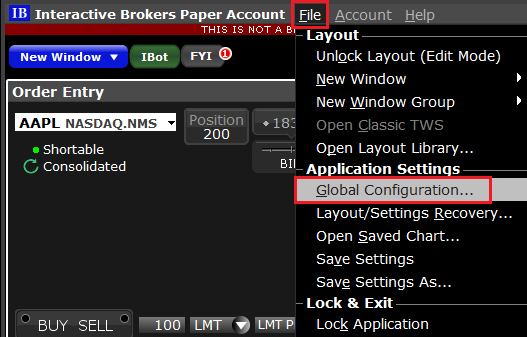
2) On the left side menu of the Global Configuration panel, click on General
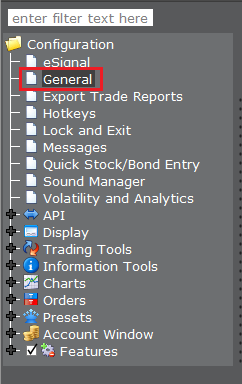
3) In the panel on the right side, in the Memory Allocation field, replace the existing value with 1536(1).png)
4) Click on Apply and then on OK
5) Shut down the TWS
6) Launch the TWS with a double click on the Desktop shortcut Trader Workstation (Should you receive an error message, please see Note 3.

B. TWS versions previous to 972
B.1 Your Operating System is Windows
1) Close TWS in case it is running
2) On your keyboard, press WIN+R (the WIN key is the key with the windows flag located on the left side of tour keyboard, between the keys CTRL and ALT)

3) Type C:\Jts\tws.vmoptions and Click OK
.png)
4) Should the system ask you which program to use to open the file, select Notepad and click OK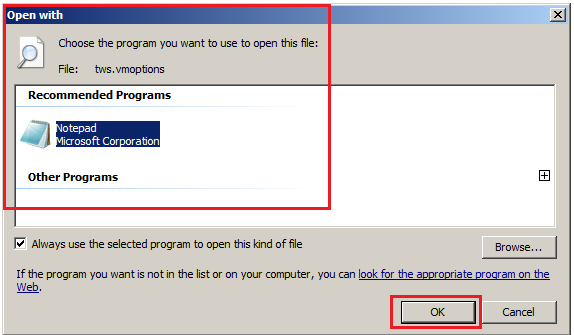
5) Cut the line -Xmx768m and paste it below the line ### Keep on update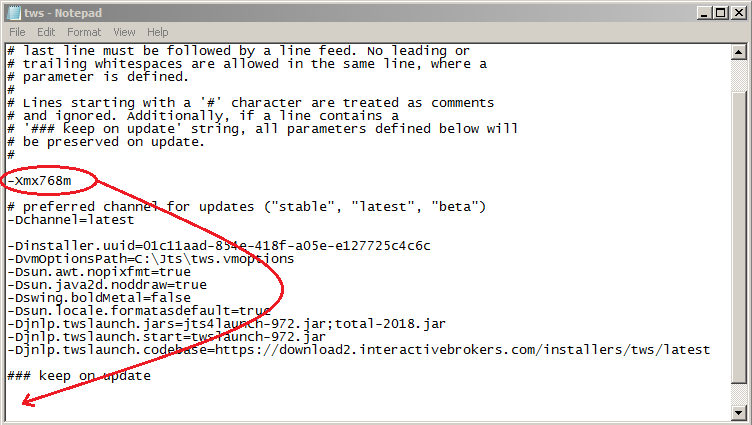
6) Change then the value of the parameter Xmx from 768 to 1536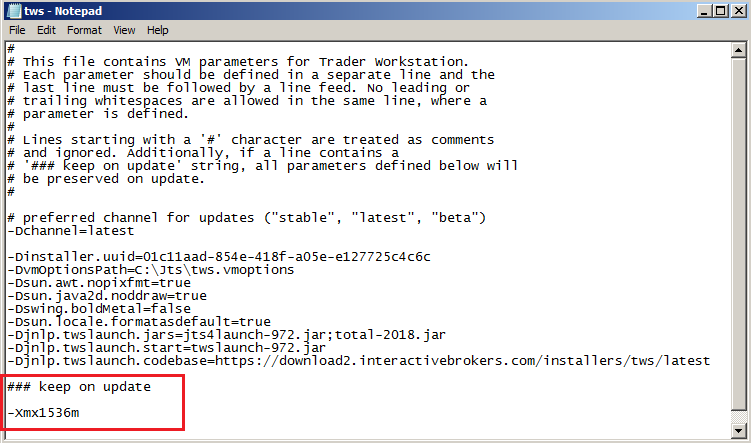
7) Save the changes by clicking on the top menu File --> Save 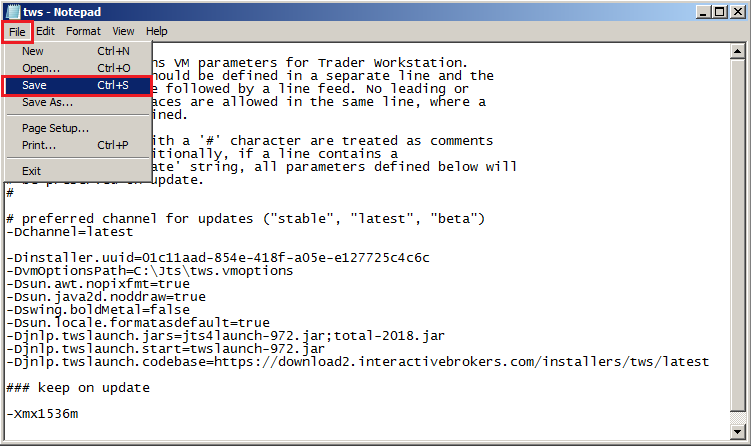
8) Close the file clicking on the X icon on the right side of the toolbar
9) Launch the TWS with a double click on the Desktop shortcut Trader Workstation (Should you receive an error message, please see Note 3.
B.2 Your Operating System is Mac OS
1) Close the TWS if it is running
2) Use the Spotlight search (the magnifier glass on the top right of your Desktop) to find the file tws.vmoptions
Normally the file is located within the Jts folder (a subfolder of your home folder)
.png)
3) On the Spotlight results panel, click on tws.vmoptions to open it. Should the system ask you how to open this file, click Choose Application... select a text editor (TextEdit, Smultron, TextWrangler...) of your choice and click Open
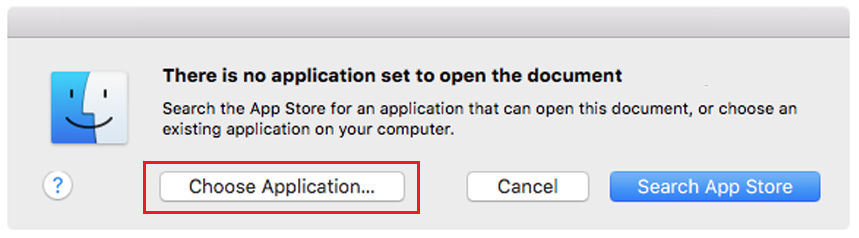
.png)
4) Locate the line -Xmx768m. Cut it and paste it below the line ### Keep on update
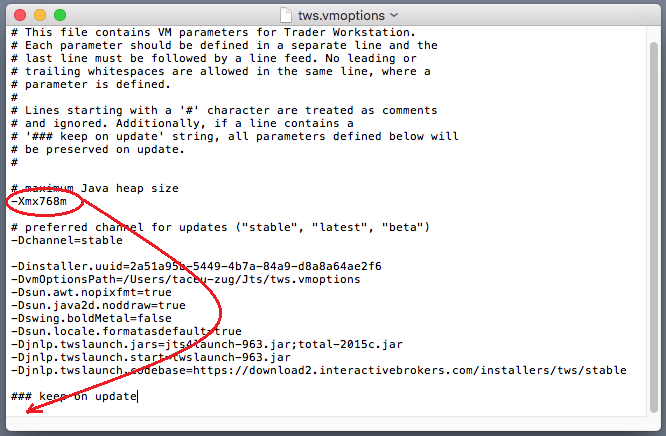
6) Modify the value 768 in to 1536
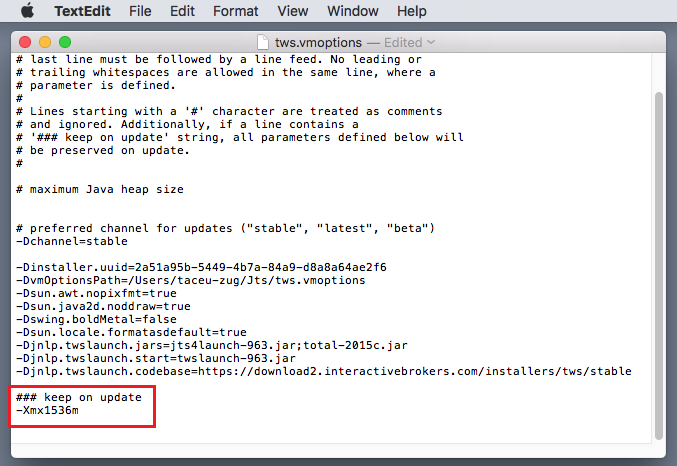
7) Save and close the file
8) Launch the TWS with a double click on the Desktop shortcut Trader Workstation (Should you receive an error message, please see Note 3.
Notes
1. Available system RAM
In order to check the amount of available system RAM on your computer, you can:
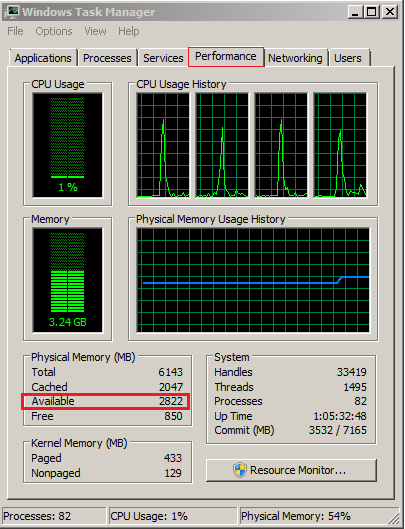
- on Windows: use the key combination CTRL+SHIFT+ESC to start the Task Manager, click on the tab Performance and look for the "Available" Physical Memory. This will tell you the amount of unoccupied RAM in MB (1024 MB = 1GB)
- on Mac OS: Open Finder, go to Application --> Utilities and open Terminal. In the terminal type the command:
sudo purge
and press Enter. The system may ask you to enter your Mac user password. Enter the password. Once the command has completed, type the following command:
top -l 1| grep PhysMem
The "unused" value will tell you the amount of unoccupied RAM in MB (1024M = 1GB)
.png)
2. Limitations of 32-bit Operating Systems
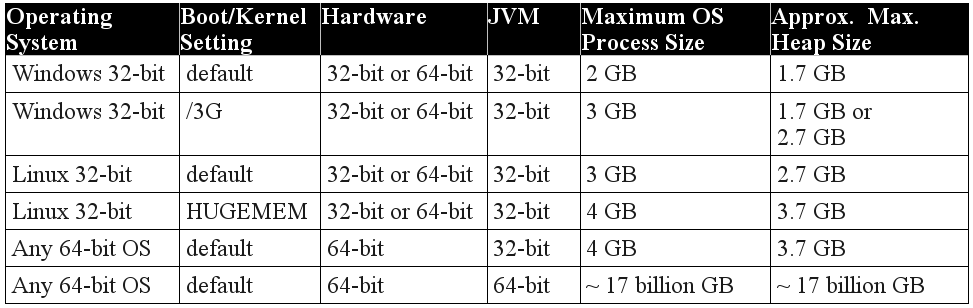
Please notice that 32-bit Operating Systems can normally only address a maximum of 2 GB of RAM per process (see table below for details). Because of this OS architecture limitation, if you have a 32-bit OS, the maximum memory allocation for the TWS must not exceed 2048 Mb.
3. Error: "Could not create the Java Virtual Machine"
This error may be displayed upon TWS startup if you set the memory allocation to a value higher than the available RAM of your system or if you set it higher than 2048 on a 32-bit Opertaing System. To overcome the error, you would need to decrease the memory allocation to a lower value using this procedure
How to obtain an Online Security Code Card
Overview:
The Online Security Code Card provides you temporary access to your account and trading platform for a duration of 21 days. This is an ad-interim solution usually needed in those cases:
A. You are temporarily away from your permanent security device and you are waiting to regain access to it.
B. You have lost your permanent security device and you want to either request a replacement or maintain access to your account while waiting for the delivery to happen.
Background:
For the cases mentioned above, we assume you have already notified IBKR Client Services and obtained a Temporary Code, as explained in KB70. You can now extend the duration of your temporary access as follows:
Activation procedure
1. Open your browser and go to the web page ibkr.com
2. Click on Login

3. Enter your credentials and click on Login. Enter the Temporary Code you received from IBKR Client Services to complete the authentication and click again on Login
.png)
4. From the left side menu, click on Settings > User Settings. Then, within the Security box, click on the wheel(Configure) icon next to Secure Login System1.png)
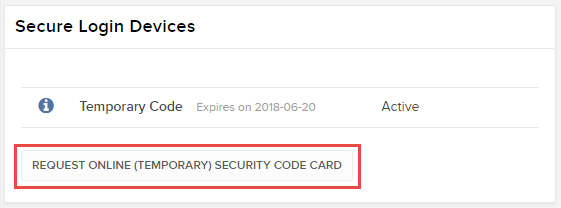
5. The system will list all the security devices currently active for your user. Below the list, click on the button Request Online (Temporary) Security Code Card
6. Your Online Security Card will be displayed. Click on Print2
(1).png)
7. Please make sure the card has been printed correctly in all its parts and it is clearly readable. Then click on Continue 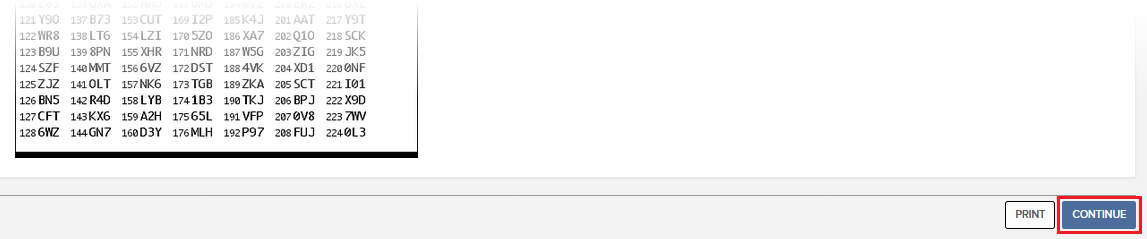
8. Two index numbers will appear on the activation screen. Locate the first index number on your card and enter the correspondent three digits code into the Card Values field. Then repeat the same operation for the second index number, leaving no spaces between the codes. Then click on Continue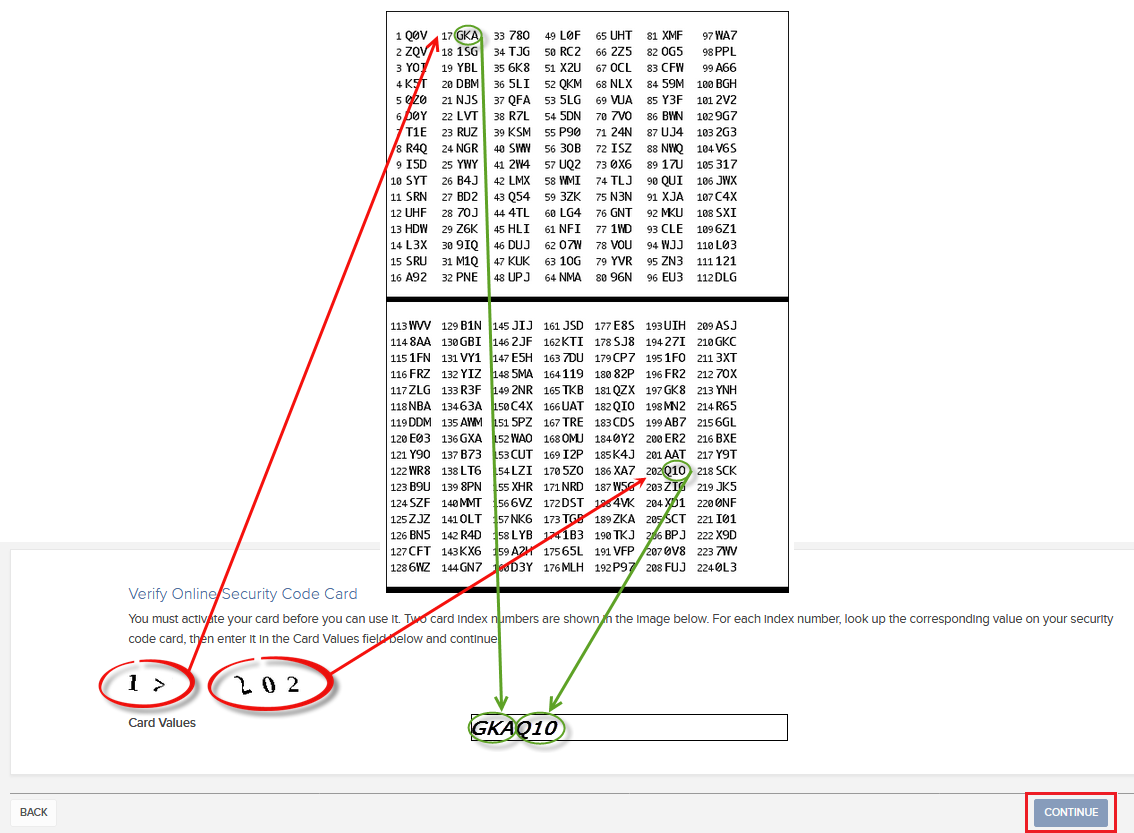
9. You will see a confirmation message stating the expiration date of the card. Click on OK to finalize the procedure.png)
Notes
1. If you use the Classic Account Management, click on the top menu Manage Account > Security > Secure Login System > Security Device
2. Should you not have a printer connected to your device, you can right-click directly on the card image and save it as an image file. In this case, upon proceeding to the activation screen, you may receive a warning message.
Please make sure that the image file has been successfully stored on your device and that it is readable before you acknowledge the warning message by clicking on Continue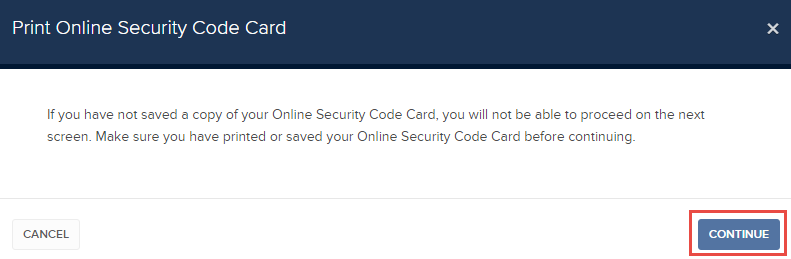
References
- See KB1131 for an overview of the Secure Login System
- See KB1943 for instructions on requesting a replacement Digital Security Card+
- See KB2636 for information and procedures related to Security Devices
- See KB2481 for instructions about sharing the Security Login Device between two or more users
- See KB2545 for instructions on how to opt back in to the Secure Login System
- See KB975 for instructions on how to return your security device to IBKR
- See KB2260 for instructions on activating the IB Key authentication via IBKR Mobile
- See KB2895 for information about Multiple Two-Factor Authentication System (M2FS)
- See KB1861 for information about charges or expenses associated with the security devices
- See KB69 for information about Temporary passcode validity
Use cases where assistance with system access is required
Overview:
Please click on the use case below which best describes your login issue for guidance as to how to proceed:
I. No Access to Account Management or TWS
1. I forgot my User Name and/or password
2. I am temporarily without possession of my security device
3. My security device is lost or damaged
4. My temporary passcode has expired
5. My on-line security card has expired
II. Partial Access (Account Management only)
1. I am able to log into Account Management with my temporary passcode but not the trading platform
III. Full Access to both Account Management and TWS
1. I am in possession of my security device and wish to activate it.
For security purposes, all requests for assistance with a User Name and/or password must be initiated via telephone and require prior verification of the caller’s identity. Click here for a list of IB’s regional Customer Service center contact numbers.
If you are temporarily without possession of your security device, interim access may be provided by contacting your regional Customer Service center via telephone where, once your identity has been verified, you will be provided with a temporary passcode.
This temporary passcode is a static alpha-numeric code which replaces the random code supplied by your security device and which will provide full access to both Account Management and the trading platforms for 2 days. Should a lengthier period of interim access be necessary and to obtain enhanced protection, it is recommended that you use the temporary passcode to log into Account Management and print out the on-line security card which will operate as a replacement to your security device for up to 3 weeks.
After the expiration of the temporary passcode or on-line security card, or if you regain possession of your security device beforehand, you will need to log into Account Management and select the menu option to re-activate your security device.
In the case of a lost or damaged security device, you will need to contact our Customer Service center to arrange for a replacement and to provide for interim access. As the time frame for shipping a replacement device may range form 3 to 14 days depending upon your country of residence, interim access is provided via an on-line security card. The on-line security card may be retrieved for printing or saving as an image to your desktop once a temporary passcode has been provided for Account Management access.
The temporary passcode is intended to provide full access to both Account Management and the trading platforms for a period of 2 days. After 2 days, the temporary passcode may no longer be used to access the trading platforms but may be used to access Account Management for an additional period of 10 days. The Account Management access, however, is limited solely for the purpose of printing or saving the on-line security card.
If your window of access to Account Management using the temporary passcode remains, you may print or save the on-line security card through which full access to both Account Management and the trading platforms is provided for a period of 21 days. If you are unable to log into Account Management, you will need to contact your regional Customer Service center for assistance.
The on-line security card is intended to provide full access to both Account Management and the trading platforms for a period of 21 days. This time frame, while limited, is intended to provide sufficient opportunity for the account holder to either regain possession of a temporarily unavailable security device or request and receive a replacement device.
If you are unable to log in using the on-line security card, you will need to contact your regional Customer Service center for assistance and to provide information as to the status of your permanent security device.
If your window of access to Account Management using the temporary passcode remains, you may print or save the on-line security card through which full access to both Account Management and the trading platforms is provided for a period of 21 days.
If you are unable to log into Account Management, you will need to contact your regional Customer Service center for assistance.
To activate either a replacement device or one which was temporarily unavailable and which required issuance of a temporary passcode, you will need to log into Account Management and select the reactivate security device menu option. Once reactivated, neither the temporary passcode nor on-line security card will remain operable.
How can I request for a replacement secure login device or temporary security code?
IBKR is committed to protecting your account and your account assets from fraudulent practices. The Secure Login System provides an extra layer of security to your account. For security purposes, all replacement security device requests must be addressed via telephone and only after the identity of the named account holder or authorized user has been verbally verified. For assistance in accessing your account immediately and obtaining a replacement security device, please contact IBKR Client Services via telephone to restore login access.
References
- See KB69 for information about Temporary passcode validity
- See KB1131 for an overview of the Secure Login System
- See KB2636 for information and procedures related to Security Devices
- See KB2481 for instructions about sharing the Security Login Device between two or more users
- See KB2545 for instructions on how to opt back in to the Secure Login System
- See KB975 for instructions on how to return your security device to IB
- See KB2260 for instructions on activating the IB Key authentication via IBKR Mobile
- See KB2895 for information about Multiple 2Factor System (M2FS)
- See KB1861 for information about charges or expenses associated with the security devices
How long does a Temporary Security Code last?
IBKR will issue a temporary passcode to Secure Login System participants in the event their security device has been misplaced, lost or damaged. The temporary passcode is intended to provide full access to both Client Portal and trading platforms for a period of 2 days. After 2 days, the temporary passcode may no longer be used to access the trading platforms but may be used to access Client Portal for an additional period of 8 days. Client Portal access, however, is limited solely for the purpose of printing or saving the Online Security Code Card.
The Online Security Code Card, in contrast, has a lifespan of 21 days, providing the account holder with an opportunity to locate the misplaced device or have continuous access in case the device is lost or damaged, and needs replacement. Account holders who remain without their physical security device and who are unable to log in using either the temporary passcode or Online Security Code Card will need to contact Client Services (ibkr.com/support) in order access their account.
The quickest solution to restore permanent access to your account, is to install and activate the IBKR Mobile authentication with IB Key. Details about the instant activation of the smartphone app can be found here.
IMPORTANT NOTICE
As a matter of policy, IBKR will not issue consecutive temporary passcodes to a given account, but rather will act to restore the account protection to the most secure level, which is provided by a physical security device.
References
- See KB70 for instruction for requesting a Temporary Passcode
- See KB1131 for an overview of the Secure Login System
- See KB2636 for information and procedures related to Security Devices
- See KB2481 for instructions about sharing the Security Login Device between two or more users
- See KB2545 for instructions on how to opt back in to the Secure Login System
- See KB975 for instructions on how to return your security device to IBKR
- See KB2260 for instructions on activating the IB Key authentication via IBKR Mobile
- See KB2895 for information about Multiple 2Factor System (M2FS)
- See KB1861 for information about charges or expenses associated with the security devices
