
How to Upload a Diagnostic Bundle from an IBKR Platform
Overview:
Some support related issues require diagnostics files and logs to be uploaded along with screenshots. The information will help our team to investigate and resolve the issue that you are experiencing.
This article will help you with detailed steps on how to upload diagnostics files and logs from various Interactive Brokers’ trading platforms.
Note: IBKR does not monitor the diagnostic bundle repository throughout the day. Should you spontaneously decide to upload a diagnostic bundle, without being instructed by Interactive Brokers, please inform our Client Services via Message Center ticket or phone call otherwise your error report will go unnoticed.
Please click on one of the links below, according to the platform you are using:
-
IBKR Mobile (Android)
-
IBKR Mobile (iOS)
1. Log in to TWS and try to replicate the issue that you are experiencing
2. Press ‘Help’ at the top left corner and select ‘Upload Diagnostics’. Alternatively, depending on your Operating System, you can use the following keyboard combinations
- For Windows and Linux Operating system: Press Ctrl+Alt+Q
- For Mac: Press Cmd+Option+H
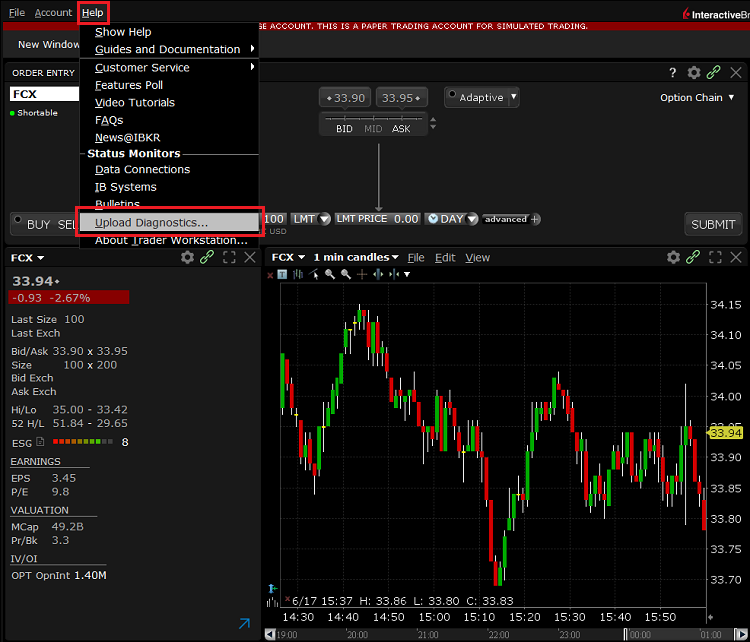
3. The ‘Upload Diagnostics’ window will appear. You may enter the reason for uploading diagnostics in the text box
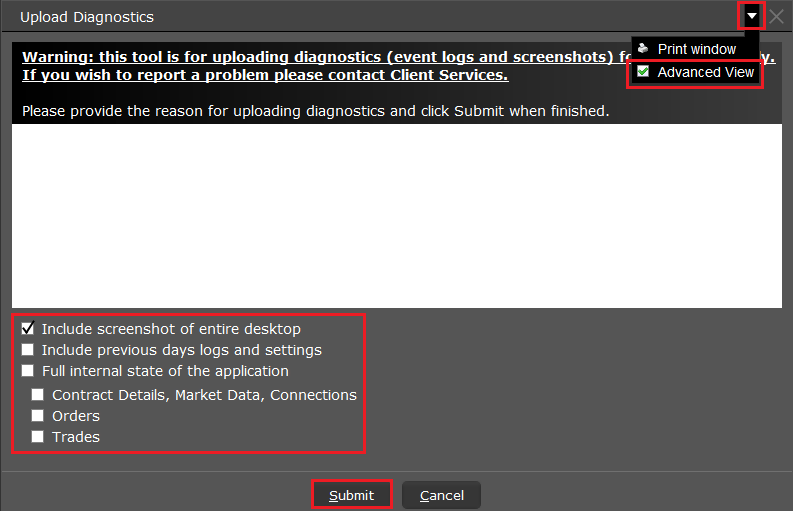
4. If an Interactive Brokers representative has instructed you to include previous days logs or select specific options when uploading diagnostics, click the dropdown on the right top corner, select ‘Advanced View’ and tick the correspondent checkboxes which will appear on the bottom left part
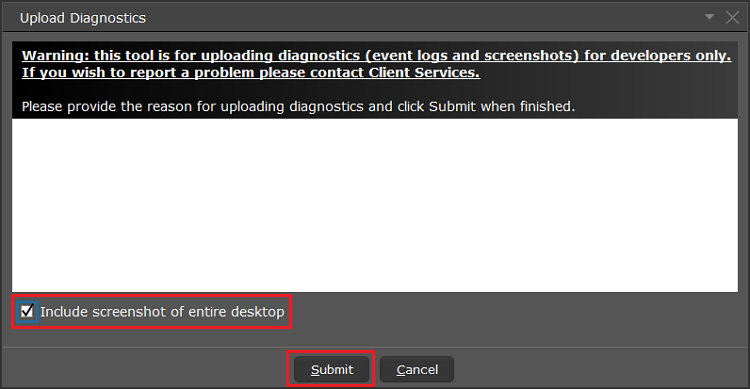
5. Make sure the checkbox ‘Include screenshot of entire desktop’ is enabled and press ‘Submit’
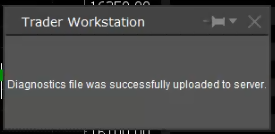
6. Do not perform any action/activity on your computer until you see the below pop-up, confirming that the diagnostics have been successfully uploaded
A) If you are at the login Screen:
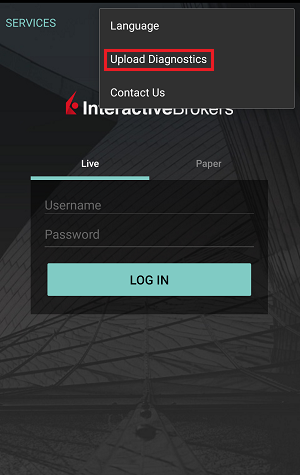
1. Tap the three dots icon in the right top corner and select ‘Upload Diagnostics’
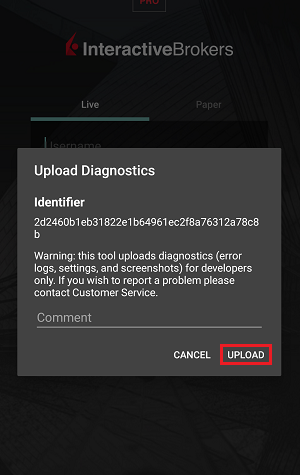
2. Add your username in the comment section and tap ‘Upload’
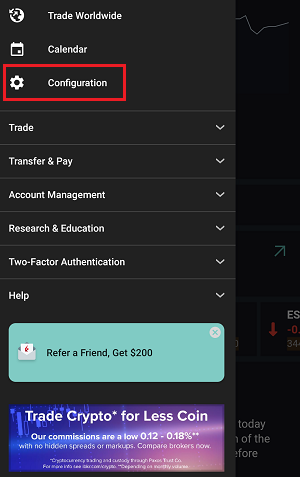
1. Tap the three lines icon in the top left corner to open the menu
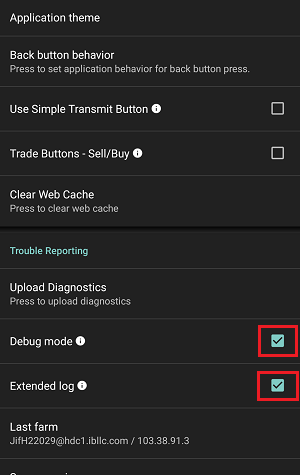
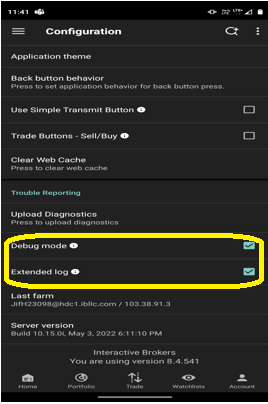
2. Tap ‘Configuration’> ‘Trouble Reporting’> enable the check box next to ‘Debug mode’
3. If requested by an Interactive Brokers representative, enable the check box next to ‘Extended Log’ as well
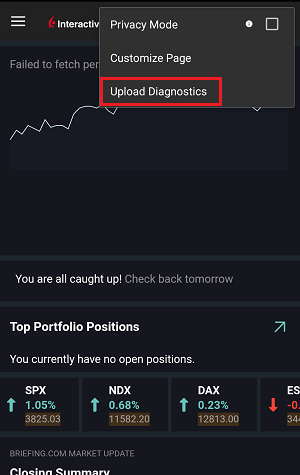
5. Tap the three dots icon in the top right corner of the screen and select ‘Upload Diagnostics’
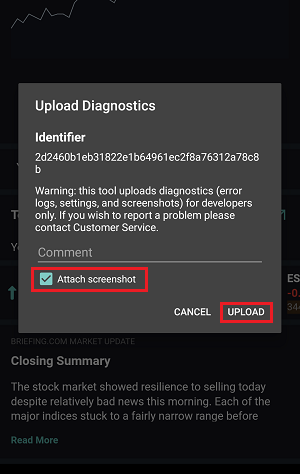
6. Enter your comments in comment section and enable the checkbox next to ‘Attach Screenshot’. Then tap ‘Upload’
A) If you are at the login Screen:
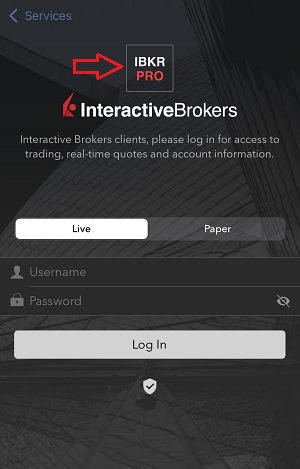
1. Tap five times in a quick sequence on the IBKR logo to open the testing menu
2. Under Configuration, enable the toggle button next to ‘Debug mode’
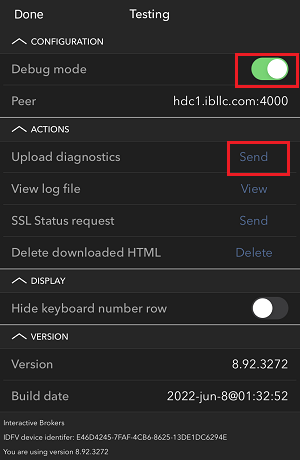
3. Tap ‘Send’ next to ‘Upload diagnostics’
4. Enter your username in the comments section and tap ‘OK’
1. Capture screenshots displaying the issue you are experiencing directly on the phone (pressing together the physical buttons Power + Volume Up)
2. Tap the option ‘More’ in the right bottom corner of the screen
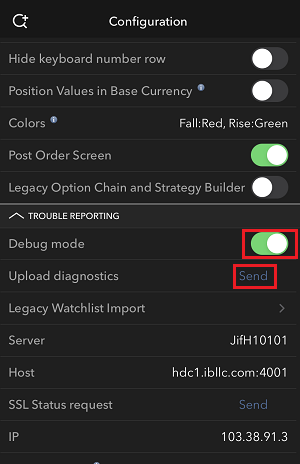
3. Tap ‘Configuration’ and expand the section ‘Trouble Reporting’
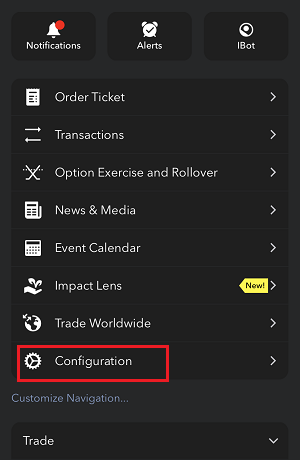
4. Enable the toggle button next to ‘Debug mode’ and, next to ‘Upload diagnostics’, tap ‘Send’
5. The ‘Send Diagnostics’ page will appear. Enter your comments in comment section
6. Tap the ‘Attach Image’ button to attach screenshots of the issue that you have previously saved in your camera roll
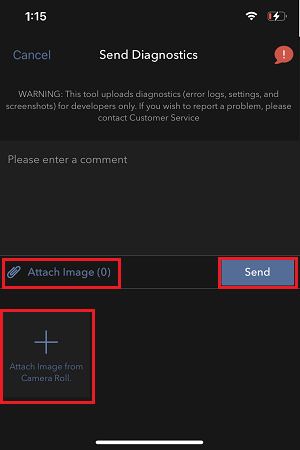
7. Tap ‘Send’
1. Log in to the app
2. Tap the User icon in the top left corner and select ‘Settings’
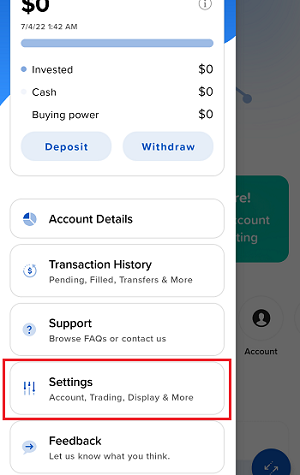
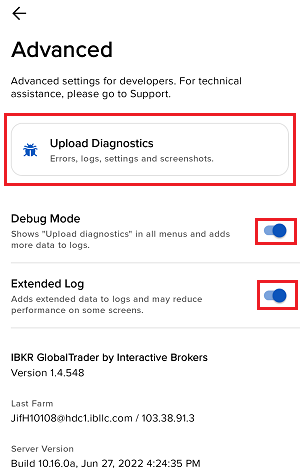
3. Tap the option ‘Advanced’ and enable the toggle button next to ‘Debug mode’
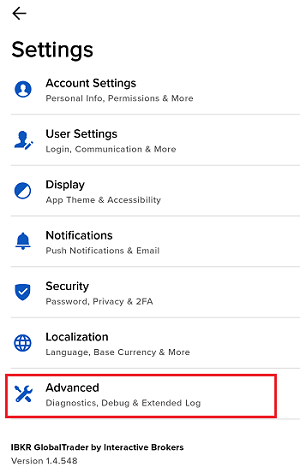
4. If requested by an Interactive Brokers representative, enable as well the toggle button next to ‘Extended Log’
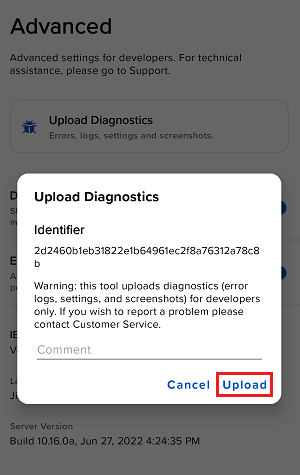
5. You will see an ‘Upload Diagnostics’ pop-up. Enter your comments in the field and tap ‘Upload’
Note: If you need to send us screenshots of IMPACT or IBKR GlobalTrader for Android, you would have to attach them to a Message Center web ticket, as explained in IBKB1071
1. Log in to the app
2. Capture one or more screenshots displaying the issue you are experiencing directly on the phone (pressing the physical buttons Power + Volume Up simultaneously)
3. Now tap the User icon in the top left corner and select ‘Settings’
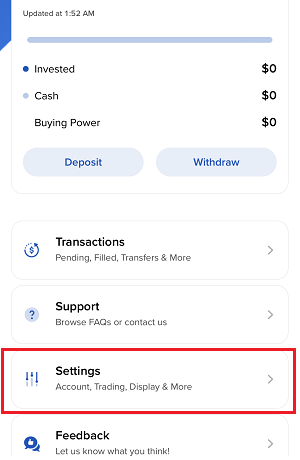
4. Tap ‘Advanced’
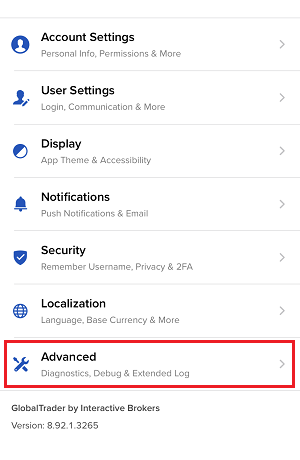
5. Enable the toggle button next to ‘Debug mode’ and tap ‘Upload Diagnostics’
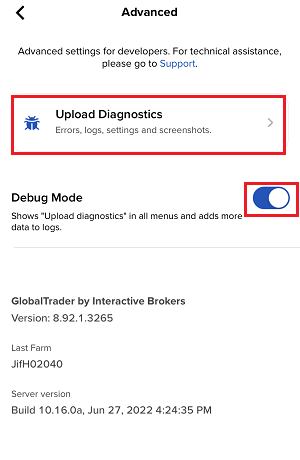
6. The ‘Send Diagnostics’ screen will appear
7. Enter your comments in the field and tap ‘Attach Image’ to attach the screenshot/s you previously saved in your camera roll
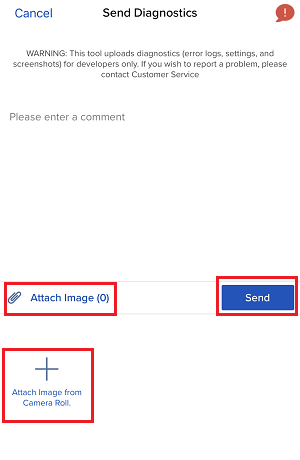
8. Tap ‘Send’
A diagnostic trace for Client Portal can be captured following the steps on IBKB3512
Disclosure Regarding Interactive Brokers Price Cap Notices
Regulators expect brokerage firms to maintain controls designed to prevent the firm from submitting orders to market centers that create a risk of disruptive trading (e.g., the risk of sudden, transient price moves).
To comply with these expectations, Interactive Brokers implements various price filters on customer orders. Those price filters may, in certain circumstances, price cap customer orders in order to avoid market disruption, and those Price Caps will generally be in a % range from a reference price range calculated by IB. (The range of the Price Cap varies depending on the type of instrument and the current price.)
Although the price caps are intended to balance the objectives of trade certainty and minimized price risk, a trade may be delayed or may not take place as a result of price capping. More information is available in Interactive Broker’s Order Routing and Payment for Order Flow Disclosure.
If a customer’s order(s) are price capped by IB’s systems, that customer will either receive (i) real-time notification of those price cap(s) in Trader Workstation or via the API or FIX tag 58 (for FIX users); and/or (ii) a daily FYI message containing a digest of the first 10 order(s) that were price capped the prior day, the initial price cap(s) for those order(s) (if applicable), and the Price Cap Range(s) for further Price Cap(s) of those order(s).
Customers may opt out from receiving future FYI Messages by clicking the relevant opt-out link within an FYI Message. By opting out from receiving these future FYI Messages, a customer:
- Agrees to waive any further notifications from Interactive Brokers about the application of the firm’s Price Caps to that customer’s order(s); and
- Acknowledges that he or she understands that his or her orders may be price-capped in the future, but that the customer does not wish to be notified again about the application of any Price Caps to any of his or her orders.
Possible Alerts during the TWS installation or update
Overview:
IBKR's Trader Workstation (TWS) is a global trading system enabling clients to use a suite of online trading tools. The TWS can be installed on Windows, Mac OS X and Linux, and it requires the presence of a Java Runtime Environment (JRE). Therefore, when you install the TWS, it also downloads the necessary Java files in order to run using a Java Virtual Machine (JVM).
Sometimes, during the installation or update process of the TWS, software such as Antivirus applications will show an alert and prevent the process to complete. The warning and other messages in this case can safely be ignored, and you can complete the installation of the trading platform.
Table of content
Downloading the TWS installer and update patches
The TWS installers available in the download areas of ibkr.com or IBKR regional web sites are sealed and digitally signed using all the safety procedures required by the industry standards and do not contain any malicious code or process. The same industry standard practices have been used for the TWS update patches, which are automatically downloaded and installed when launching the TWS (if and only if there is an update available). Nevertheless, if you have received an alert, we recommend you to be cautious. Should you intend to keep the TWS installation file on your machine for future use, you should make sure that the same precautions for the protection of data from viruses and malware are applied to it.
Why do I receive a warning when I install the TWS or when the TWS automatic update runs?
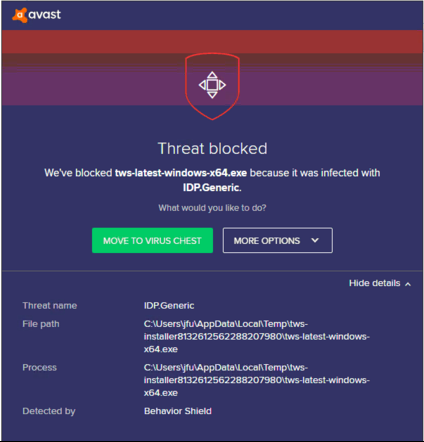
You might see an alert (similar to Figure 1 but not limited to) and your security system would wait for your input on how to process the suspicious file. You usually have the option to quarantine the file, delete it, ignore it once or create a permanent exception for it.
Please note that your antivirus might autonomously quarantine or delete the TWS installer file or some of his components without asking for your confirmation and without showing you any warning. Nevertheless, this should only happen if you have preset your antivirus to specifically react in this way.
Figure 1.
What should I do when I receive a warning?
In case you receive a warning during the TWS installation or update, we recommend the following steps:
1. Delete the TWS installer and download it again from the IBKR main or regional web site
a) Delete the TWS installer file already present on your computer and then delete it as well from your Trash (empty your Trash)
b) From the table below, click on the TWS download area correspondent to your location
| Location | TWS download area |
| US | https://www.ibkr.com |
| Asia / Oceania | https://www.interactivebrokers.com.hk |
| India | https://www.interactivebrokers.co.in |
| Europe | https://www.interactivebrokers.co.uk https://www.interactivebrokers.eu |
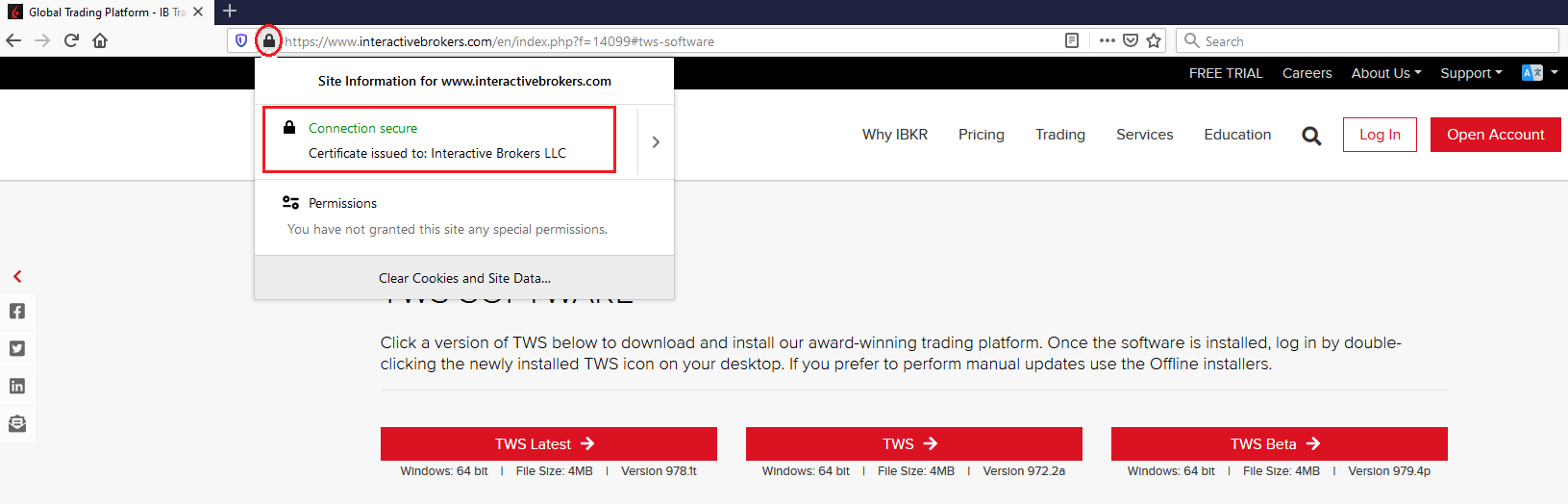
c) Check the website certificate. Most Internet browsers will immediately alert you in case the site certificate is invalid, compromised or expired. Nevertheless, if you want to check manually the validity of the site certificate, click on the padlock close to the address (URL) and make sure the Connection is reported as secure and no security warning are present (see Figure 2 below).
Figure 2.
d) Click on the button labeled with the TWS version you wish to use and download again the TWS installer
2. Check the digital signature of the TWS installer file you have downloaded
Normally you will immediately receive a security warning in case the digital signature of a file is compromised. Nevertheless, if you wish to perform a manual check, proceed as follows, according to your Operating System:
For Windows
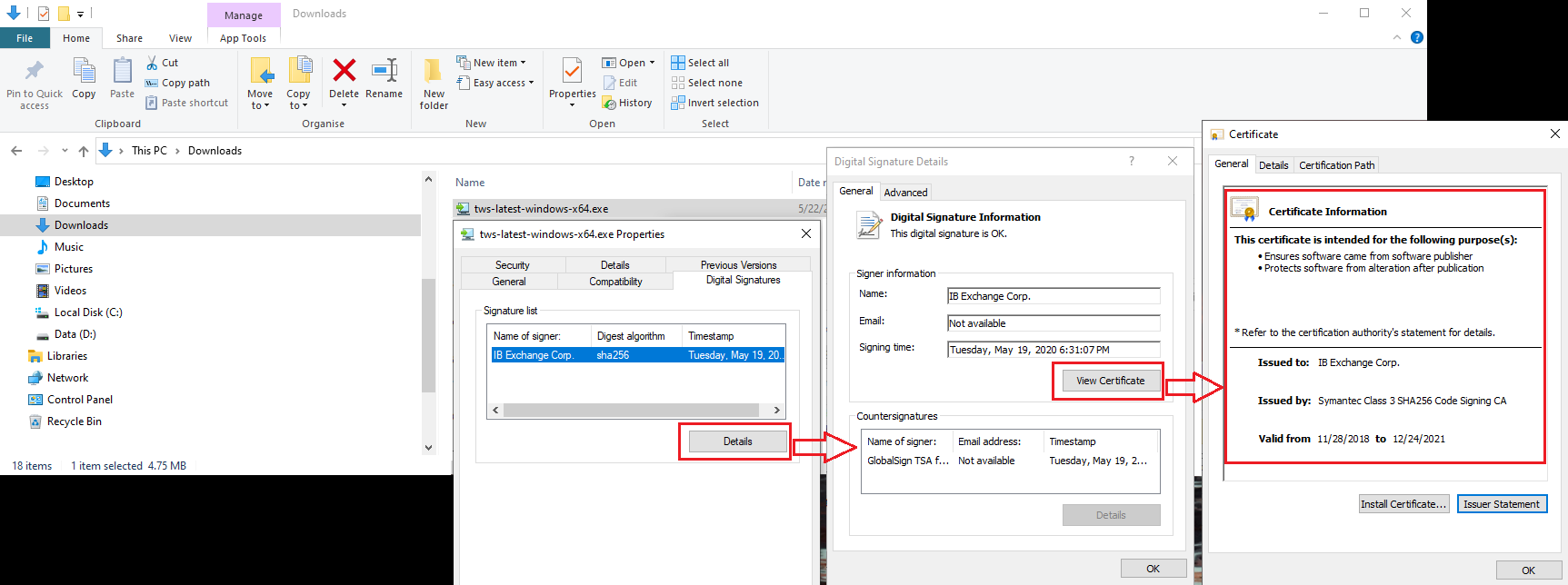
a) From the Windows file explorer, access your Downloads folder or the folder where you placed the TWS installer
b) Right click on the TWS installer file, select Properties and then click on the tab "Digital Signatures"
c) Click on "Details" and on "View Certificate" to check the certificate status and signer. The legitimate signer is "IB Exchange Corp." (See Figure 3 below)
Figure 3.
For Mac OS X
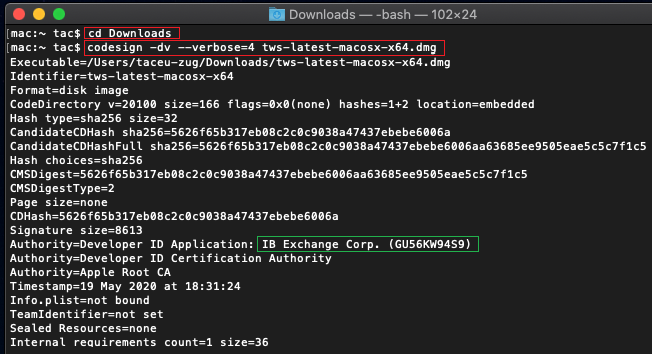
a) Click on the magnifier glass (Spotlight Search) on the top right of your screen and type Terminal. From the search results, launch the Terminal app
b) Type cd Downloads and press Enter
c) Type codesign -dv --verbose=4 tws-latest-macosx-x64.dmg and press Enter. Please notice that the name of the file (tws-latest-macosx-x64.dmg) may differ according to the TWS version you decided to download. If needed, replace the file name in the command with the appropriate one
d) Check the command output and make sure the "Developer ID Application" is "IB Exchange Corp." (see Figure 4 below)
Figure 4.
3. Run the TWS installer file you have downloaded
Once you have downloaded again the TWS installer and after you made sure the file is original (points 1. and 2. above), you can proceed with the installation. Should you still receive a warning from your antivirus, you can reasonably consider it as a false positive and ignore it. Should you need guidance on this step, please proceed directly to the next section.
How can I signal an Alert as false positive?
All modern security systems allow the creation of exceptions, precisely in order to address false positive cases. An exception is a rule forcing the antivirus engine not to scan a specific file or process. That specific file or process will hence be deemed safe and no further alerts will be raised for it.
The procedure for creating an exception may vary, according to the security software you are using. You may be able to create a temporary or permanent exception directly from the alert pop-up or you may have to create one manually from a specific section in the main configuration panel.
If you are unsure of the procedure, we recommend you to consult your antivirus documentation.
Once you have set an exception for the TWS installer file or for the TWS updater process, those will be no longer blocked and will be able to complete their respective tasks successfully.
What else can I do if I have doubts or if my system behaves abnormally?
If you have reasons to believe your machine may be compromised or infected, we recommend performing a full system scan. Usually you can right click on the antivirus icon present on the bottom taskbar (for Windows) or on the upper menu bar (for MacOS) and you will find the option to launch a full system scan. Alternatively, you may start that task from the main antivirus window. If you are unsure of the procedure, we recommend you to consult your antivirus documentation.
Technical Background
How does my security system scan the files I download from the Internet?
Modern antivirus and anti-malware engines base their threats recognition on:
Signature-based scanning: the antivirus scanner searches for a specific pattern of bytes that was previously catalogued as malicious or at least suspicious. The antivirus may check as well file signatures (called hash) against a database of known threats (called virus definitions).
Analysis of behavior: the antivirus engine detects specific actions which individually may not represent a threat but, when correlated together, resemble the usual activity of a malicious software (e.g. the ability of a code to replicate or hide itself, download additional files from the Internet, contact external hosts over the Internet, modify the Operating System registry) This type of scan is designed to detect previously unknown computer threats.
Heuristic detection: the scanner de-compiles the code or runs it within a virtual, restricted environment. It then classifies and weights the actions performed by the code against a predefined, behavior based, rule set.
Cloud-based protection and machine learning: those are relatively new techniques. The file that needs to be analyzed is sent to the antivirus / security system vendor cloud where sophisticated algorithms perform a deep analysis of the code authenticity and behavior.
Are those scan methods infallible?
Modern threats are very sophisticated and, like biological viruses, can mutate their code and their signatures. Moreover, new malwares and exploits are created every day and spread rapidly over the Internet. The threat recognition methods mentioned above are therefore not infallible but can guarantee a high percentage of malware recognition when combined together.
While signature based techniques are very successful in recognizing known threats and less prone to false positives, they are not so efficient in recognizing unknown malware or mutations of existing ones. In this area, the behavioral and heuristic methods perform much better although they are more prone to false positives since their detection is not based on bare code matching but on a certain degree of interpretation and hence uncertainty.
The term "false positive" is used when a security system classifies an innocuous file or process as malware.
Reference:
Alternative Streaming Quotes for US Equities
Overview:
The SEC Vendor Display Rule requires that brokers give clients access to the NBBO at the point of order entry. In order to provide users with free live streaming market data, we cannot display this free stream when entering an order without the client subscribing to the paid NBBO. Please note, this does not apply to non-IBLLC clients.
Background:
Under the Rule 603(c) of Regulation NMS (Vendor Display Rule), when a broker is providing quotation information to clients that can be used to assess the current market or the quality of trade execution, reliance on non-consolidated market information as the source of that quotation would not be consistent with the Vendor Display Rule.
All clients (IBKR Lite and Pro) have access to streaming real-time US equity quotes from Cboe One and IEX at no charge. Since this data does not include all markets, we cannot show this quote when entering parameters for a US stock quote. Therefore and according to FINRA's enforcement of the SEC rule, IBKR provides IBLLC US clients a free default snapshot service, “US Snapshots VDR Required”. If clients do not sign up for an NBBO US equity data service and they are an IBLLC client, they will have access to free real-time snapshots when making trading decisions on US stocks. Order routing will not change based on what is shown on the screen. If one is subscribed to NBBO quotes or not, by default the trade will still take place with the assistance of the SMART order router designed to provide the best price for the order.
Please see the sample screenshots below from TWS Classic and TWS Mosaic for what occurs when placing an order without the NBBO streaming subscription for US equities.
TWS Classic:
1. Screenshot of quotes showing without order entry line item
2. Screenshot of quote going blank when putting in the order entry line item
TWS Mosaic:
1. Screenshot of quotes showing without order entry line item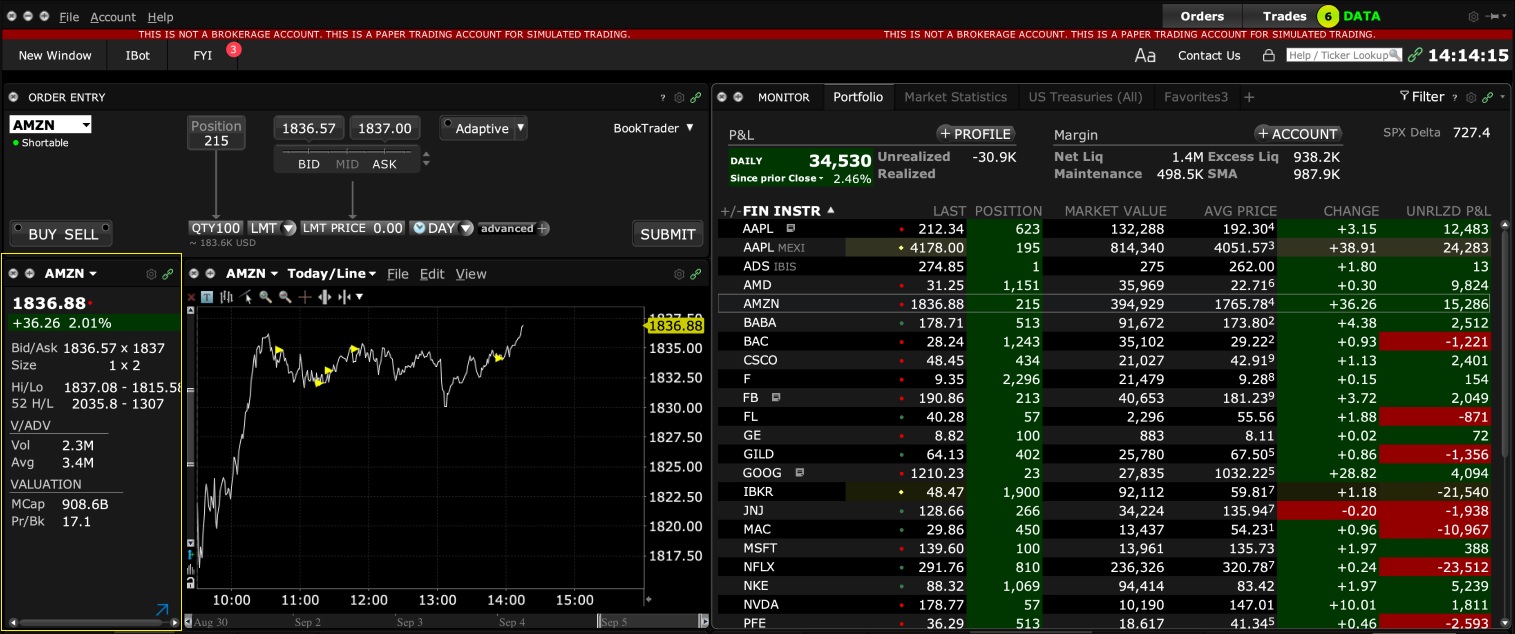
2. Screenshot of quote going blank when putting in the order entry line item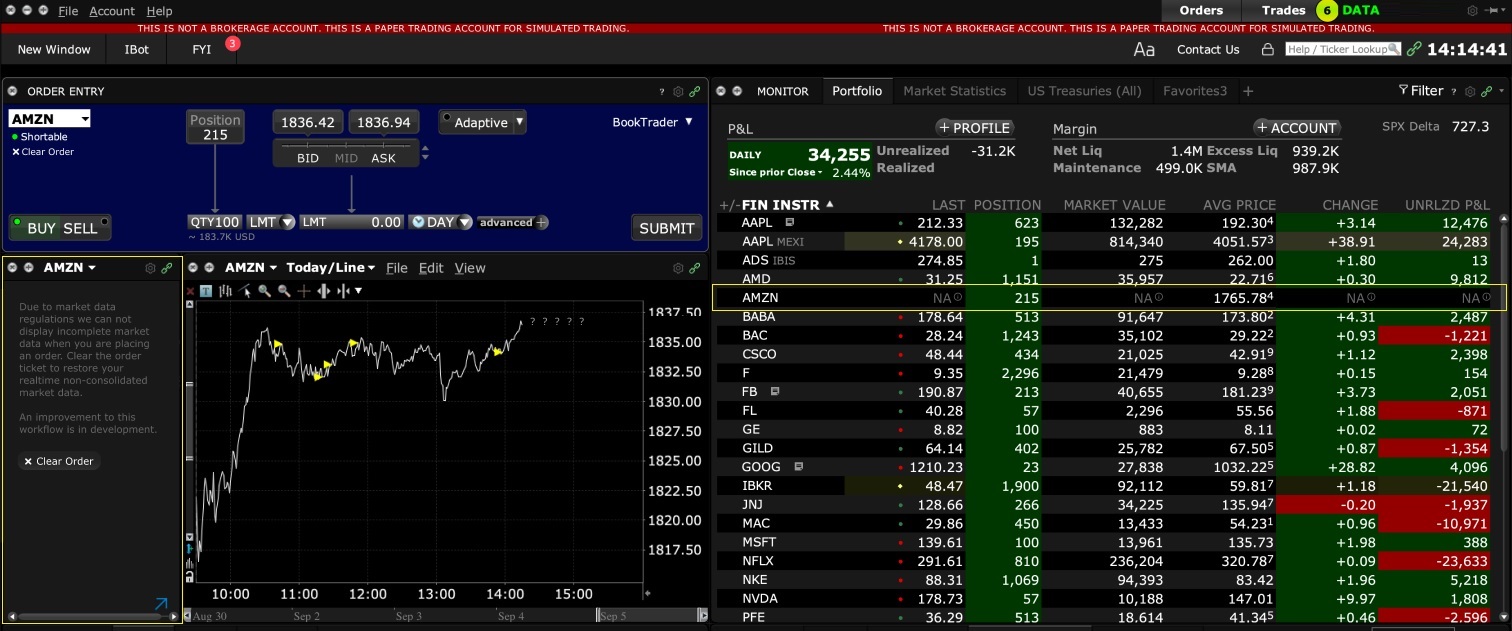
How to overcome the "Downloading settings from server failed" error
Background:
Store settings on server allows clients the ability to store their Trader Workstation (TWS) settings/configuration on the cloud and retrieve them at anytime from another computer. This feature allows you to use the layout of a specific user on two or more machines.
In some specific circumstances, the operation which stores/downloads the settings to/from the cloud may fail and the following error message may appear shortly after the TWS has loaded on the screen:
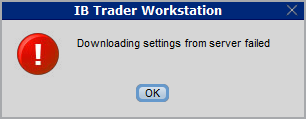
How to overcome this error message?
The underlying causes of this message are usually the following:
- ACCESS TO THE LOCAL MACHINE IS BLOCKED: A security setup, such as a firewall or antivirus, prevents the access of this computer to the cloud storage. This prevents TWS from accessing the remote server, thus disallowing the settings file upload or download. Recommended workaround: set up an exception on the firewall or antivirus in order to exclude the TWS executable file (c:\Jts\tws.exe) or the entire TWS folder (C:\Jts) from the real time security scan. The procedure to set an exclusion may vary, according to the software you are using, therefore we recommend consulting the user guide or the on-line documentation of your specific security program.
- ACCESS TO THE REMOTE SERVER IS BLOCKED: A firewall or proxy service blocks the communication with the cloud storage through the network on which this computer is. In this scenario, you (or your IT / Networking departments, in case you do not have the rights for such an operation) can modify the firewall or proxy settings to allow the computer to communicate with the cloud server s3.amazonaws.com on the TCP port 443. For additional details about the hosts/ports which needs to be allowed for the proper TWS operation, please see as well the section "DESKTOP TWS" of KB2816. Please refer to the documentation of your specific software in order to create specific rules for your firewall or proxy system.
See KB2323 for instructions on how to restore TWS settings from external storage
See KB2320 for instructions on transferring settings from one user to another
How to adjust font size in TWS
Background:
By default, Trader Workstation (TWS) is designed to display in a font size and style which can be read comfortably for the average user across various screen sizes and resolutions. With the advent of new technologies, there has been an exponential push to make monitors with higher display sizes and your layout may need to be further adjusted manually. This document serves to explain how to manually adjust the font size for TWS.
Procedure
To adjust font size throughout TWS:
- From the Anchor window, click the Font Size Adjustment icon.

- Check the button Adjust window & column widths to ensure all windows will resize automatically to keep the same font:window ratio. (If unchecked, only font size will change but window size will remain the same).
- Click the button Smaller or Larger until the font size is correct.
Notice that the font size will change immediately as you click the button. - Click the Font Size Adjustment icon when done.
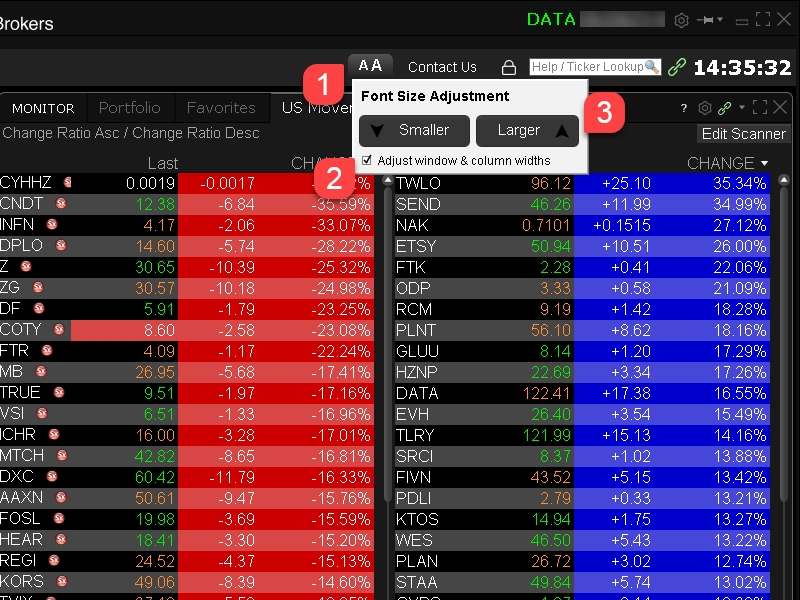
Note: It is possible that currently not all windows will be adjusted in the same way.
IBKR Host and Ports Documentation
Background:
TWS connects to IBKR servers via port 4000 and 4001, if using SSL, and will not operate on any other port. If you are using a proxy server, it needs to be a transparent with both inbound and outbound ports open so that the TWS can function properly.
Below are listed all the gateways, along with the corresponding destination host that might be used by the TWS when you use our services, please allow access to those hosts.
The easiest way to test whether your connection needs any special setup or has been configured properly is to use IBKR's Dedicated Test page, which will provide a dynamic test of your network’s connection against our main trading and market data servers. If a “Success” response is returned, there is nothing more for you to do. If the response is “Failure”, we recommend adding an exception for the new hosts to your network’s configuration or review your changes.
Note: If your network uses a browser proxy, the test page can produce false positives. In this case, or if you are not sure what your network setup is, turn to your network administrators, who can perform ping and telnet tests to the hosts listed below to confirm compliance with the connectivity requirements.
Specs:
|
CLIENT PORTAL AND WEBSITE |
||||
|
REGION/PRODUCT |
SERVER (HOST) |
PORTS1 |
||
|
IBKR WEBSITE – AMERICA |
443 |
|||
|
IBKR WEBSITE – Canada |
443 |
|||
|
IBKR WEBSITE – UK |
443 |
|||
|
IBKR WEBSITE – INDIA2 |
443 |
|||
|
IBKR WEBSITE – JAPAN2 |
443 |
|||
|
IBKR WEBSITE – HONG KONG2 |
www.interactivebrokers.com.hk | 443 | ||
|
IBKR WEBSITE – CHINA2 |
www.ibkr.com.cn | 443 | ||
|
IBKR WEBSITE - AUSTRALIA |
www.interactivebrokers.com.au | 443 | ||
|
CLIENT PORTAL – EAST |
443 |
|||
|
CLIENT PORTAL – CENTRAL |
443 |
|||
1: Standard Communication: TCP Port 80 | SSL Communication: TCP Port 443.
2: This IB Server host does not support ping request.
Important Note: If you are accessing Client Portal from a corporate network where the Internet access is provided through a load balancing equipment, you may receive error messages about expired/invalid session and/or missing web content upon or after the login phase. The load-balancer cycles your outbound connections over two or more network interfaces to equalize the network workload. Because of this mechanism, your HTTP requests reach our systems from different IP addresses, invalidating your Client Portal session. In this scenario, as a solution, please ask your network administrator or IT group to configure your machine/device for bypassing the load-balancer. This will allow your session to remain valid and alive.
|
DESKTOP TWS |
|||
|
REGION/TOOL |
PRIMARY/BACKUP |
SERVER (HOST) |
PORTS |
|
|
PRIMARY |
|
|
|
BACKUP |
|||
|
|
PRIMARY |
|
|
|
BACKUP |
|||
|
|
PRIMARY |
|
|
|
BACKUP |
|||
|
TWS ASIA |
PRIMARY |
4000 / 4001 |
|
|
BACKUP |
|||
|
TWS ASIA - CHINA3 |
PRIMARY |
4000 / 4001 |
|
|
BACKUP |
mcgw1_hb1.ibllc.com.cn | ||
| TWS AUTO-UPDATE | PRIMARY | 443 | |
|
RISK NAVIGATOR |
PRIMARY |
443 |
|
|
TWS CLOUD SETTINGS |
PRIMARY |
443 |
|
|
IB CAM |
PRIMARY |
4000 / 4001 |
|
|
DIAGNOSTICS REPORTS |
PRIMARY |
443 |
|
3: Gateway dedicated to clients with accounts assigned to the Hong Kong server, but are physically connecting from Mainland China.
How to check and solve connectivity issues affecting the Trader Workstation (TWS)
Background:
The Trader Workstation (TWS) software needs to connect to our gateways and market data servers in order to work properly. Connectivity issues affecting your local network or your Internet Service Provider network may negatively affect the TWS functionality. In this article we will indicate how to test your connectivity using an automated connectivity test web page.
How to test the connectivity using the automated "IB Connectivity Test" web page?
1) Launch the Firefox browser and open this link with that browser: http://www.interactivebrokers.com/cgi-bin/conn_test.pl
Note: due to browser specific constraints, the above connectivity test link will only produce consistent results on the Mozilla Firefox browser. If you do not have Firefox, you can download and install it form here.
2) Please wait until all the tests have been completed and results have been displayed. If you see "Success" as outcome for all tests, your connectivity to IB Servers is reliable at the present moment. No additional connectivity troubleshooting or configuration should be needed.
3) If you see "Fail" as outcome for one or more test/s, please click on the link "Fail" itself in order to display the "IB Network Troubleshooting Guide". That section will help you conduct some manual tests to identify the cause of the failure.
Note for Corporative environments and Proxy server users: the automated "Connectivity Test" page may return misleading results in case your machine is accessing the Internet through a Proxy server. This usually happens if you are connected to a company network. If this is your case, we kindly ask you to contact your Network Administrator or your IT Team and ask them to perform a manual connectivity tests towards the destination servers indicated in the table on the top of the IB automated "Connectivity Test" web page itself. The manual connectivity test should be conducted using destination TCP ports 4000 and 4001. Should they prefer to have the server list in another format or should they need to set up the firewall / IP Management rules, you can forward them this page.
Locating Portfolio Page
The portfolio page allows you to view and montor your current portfolio at the individual position level, including psoition quantity, market value, current bid-ask and profit/loss. Instructions for locating the page vary by trading platform and are outlined below:
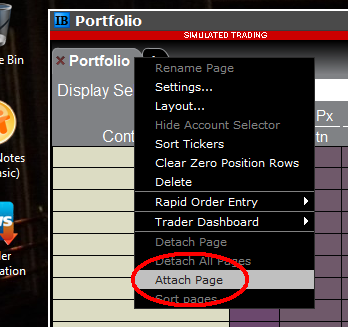
TWS Classic - First check to see if you have detached the page from the main window (an option provided by right clicking on the tab). If this is the case, the page will be open but hidden behind the main window. Minimize the main window by clicking on the minimize icon located in the upper-right hand corner of the screen. If you are able to then view the portfolio page and wish to reattach it, simply right click on the tab to open the menu and select the "Attach Page" option.
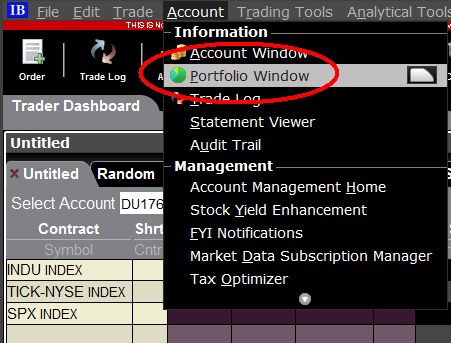
If the page is not detached, select the "Account Window" option from the top menu bar and then "Portfolio Window" menu option.
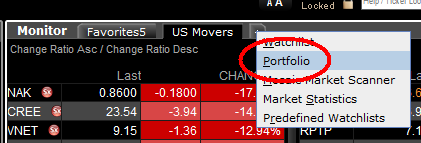
Mosiac - from the Montor window, click on the small + sign located to the right of any existing monitor tabs. Then select "Portfolio" and this page will reappear.
How to start multiple TWS sessions on a Mac
Background:
By default macOS does not allow the user to run multiple sessions of the same application. The following workaround can overcome this limitation in case you need to run the Trader Workstation for more than one user.
-
In case running different versions of the TWS is suitable to your needs, please follow the instructions on Procedure 1
-
In case you need multiple sessions of the same TWS version, please follow the instructions on Procedure 2
Procedure 1
1) Open the web page ibkr.com
2) Navigate to the menu Technology > TWS Software.
3) First download and install one of the auto-updating TWS versions (TWS LATEST or TWS according to your preference).
4) Once you have completed the installation, download and install one of the offline versions (OFFLINE TWS LATEST or OFFLINE TWS according to your preference).
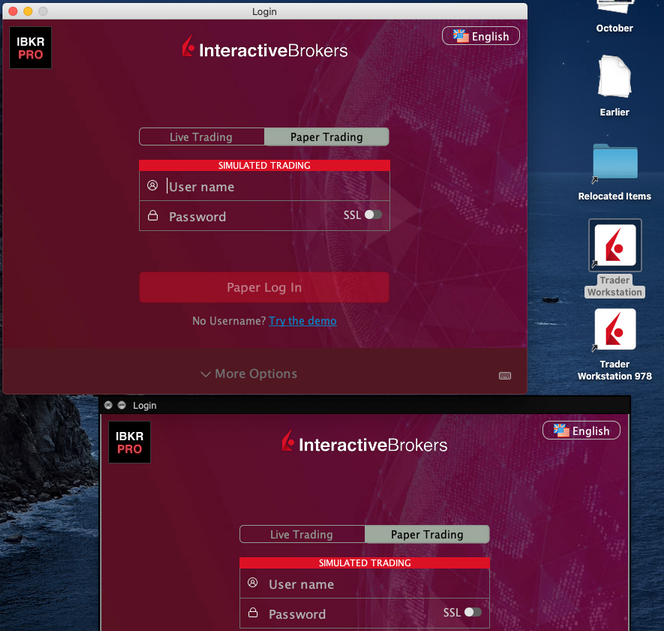
5) You will then see on your Desktop two different Trader Workstation icons. You can use the first shortcut to start the first TWS session and the second one to start the additional one (see Figure 1.). Note: the link containing the version number in the name is the OFFLINE version. This will be a version that needs periodical manual updates.
Figure 1.
Procedure 2
1) Launch the first session of the Trader Workstation using the TWS icon present on your Desktop. If you still do not have any Trader Workstation icon, please go to the web page ibkr.com and click on the menu Technology > TWS Software. Then download and install one of the TWS versions displayed.
2) Open the Finder and click on Applications on the left side menu. Then select Utilities and then launch Terminal (see Figure 2.).
Figure 2.
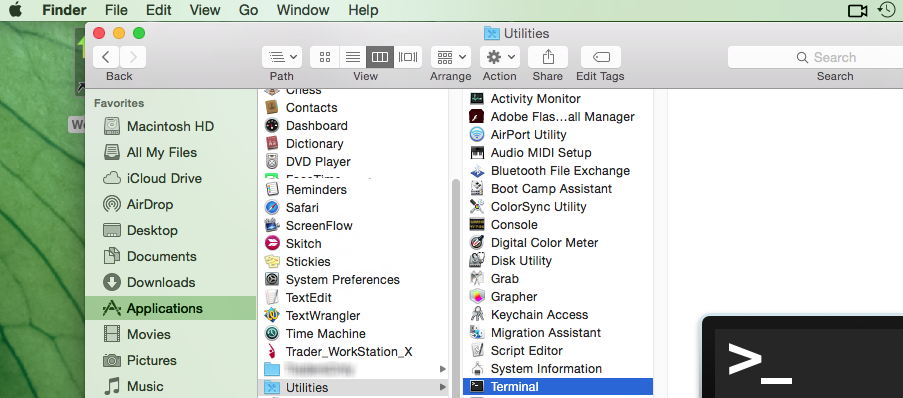
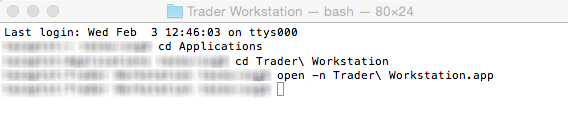
3) The Terminal will appear on the screen and will point to the home folder of your current macOS user. Then enter the commands listed below (see Figure 3.) on your Terminal. After each one, press ENTER on your keyboard.
cd Applications
cd Trader\ Workstation
open -n Trader\ Workstation.app
Figure 3.
4) The login window for your second TWS session will then appear on your Desktop. You can now close the Terminal.
Note: the procedure above presumes that the TWS executable is located in the following path: users/yourusername/home/Applications/Trader Workstation/Trader Workstation.app
If at the time you installed the TWS, you selected to install it for all the users of your system, then the TWS executable will be located here:
/Applications/Trader Workstation/Trader Workstation.app
and therefore you would need to issue the following commands in the Terminal:
cd /Applications
open -n Trader\ Workstation.app
